How to get a different alarm sound every day on iPhone
Published October 10, 2026 · 6 min read
The iPhone Clock app gives each alarm one sound, so the way to get a different sound on each day is one alarm per day, each repeating on a single weekday with its own tone. Clock can't pick a random sound for you; for that you need a Shortcuts automation or an app that schedules alarms itself.
Below: the manual per-day setup, why “shuffle” isn't built in, the options for a random wake-up sound, and what Ringsy can do on iOS 26 and later. The first part works on any iPhone without installing anything.
How do I set a different alarm sound for each day?
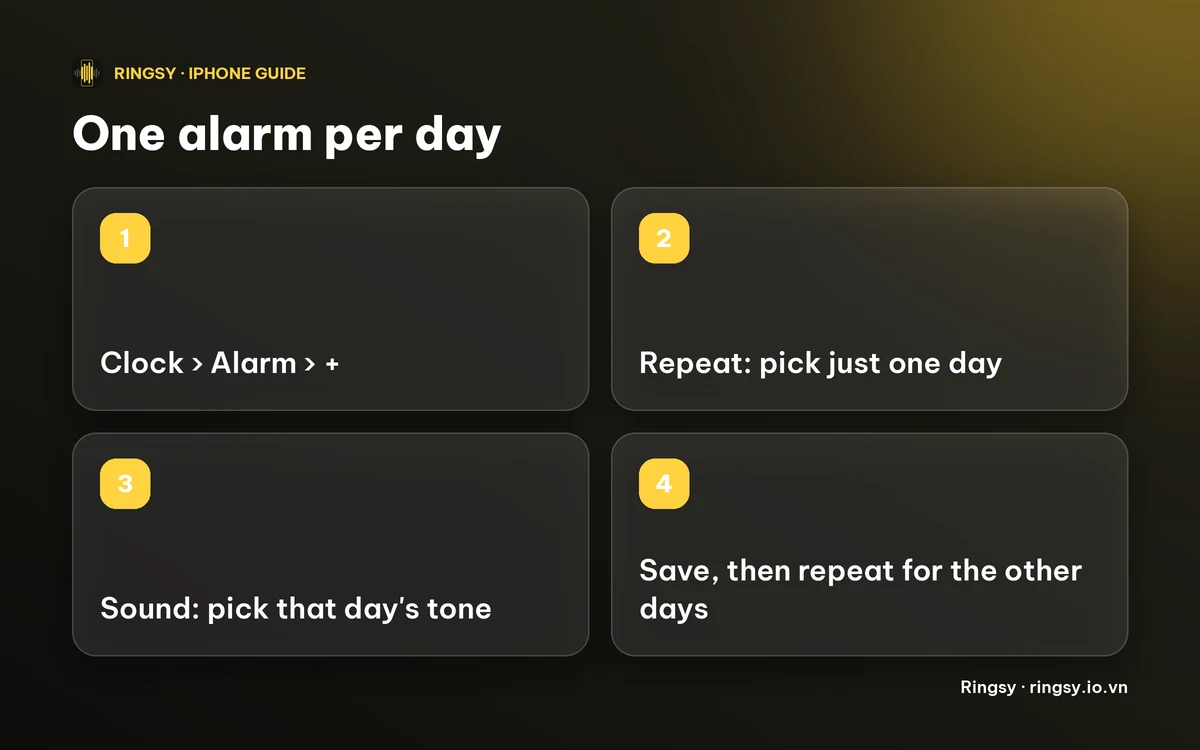
Every alarm in Clock has its own Repeat days and its own Sound, so you build the week out of seven small alarms instead of one:
- 1Open Clock › Alarm and tap + .
- 2Tap Repeat and select only one day, for example Monday. Tap Back.
- 3Tap Sound and choose the tone for that day. Custom ringtones you have added are listed under Ringtones.
- 4Give it a Label such as “Mon”, so you can tell the alarms apart, and tap Save.
- 5Repeat for the other days. You can change an alarm's day or sound later: tap Edit, then the alarm.
If two days share a sound (all weekdays, say), one alarm with several repeat days is enough; only days that differ need their own.
Can the iPhone play a random alarm sound?
Not in the Clock app. An alarm there plays the one sound you chose, and there is no “shuffle” or “playlist” option. Apple's Clock also can't rotate sounds on its own from day to day.
What you can do:
- Use the seven-alarm method above and swap the sounds yourself now and then.
- Use a Shortcuts personal automation that runs at a set time and plays music with shuffle on. It needs songs you can play on the phone (your own library, or a subscription), and it is a shortcut, not a Clock alarm: it has no Snooze button, and whether it sounds with the Silent switch or a Focus on is something to test before you rely on it.
- Use an alarm app that schedules alarms itself and re-picks the sound. Ringsy does this on iOS 26 or later; see below.
How do I get my own sounds into the alarm list?
Clock lists every ringtone on the phone, so a custom sound has to become a ringtone first. On iOS 26 or later, share an audio file from Files (or a recording from Voice Memos) and choose “Use as Ringtone”. On iOS 17 or 18, export it as a ringtone from Apple's free GarageBand app.
Keep each sound under 30 seconds and start with something audible. Our guide to changing the alarm sound covers the details, and the guide to making a ringtone without a computer has the full steps for both routes.
How does Ringsy do a tone per day or a random tone?
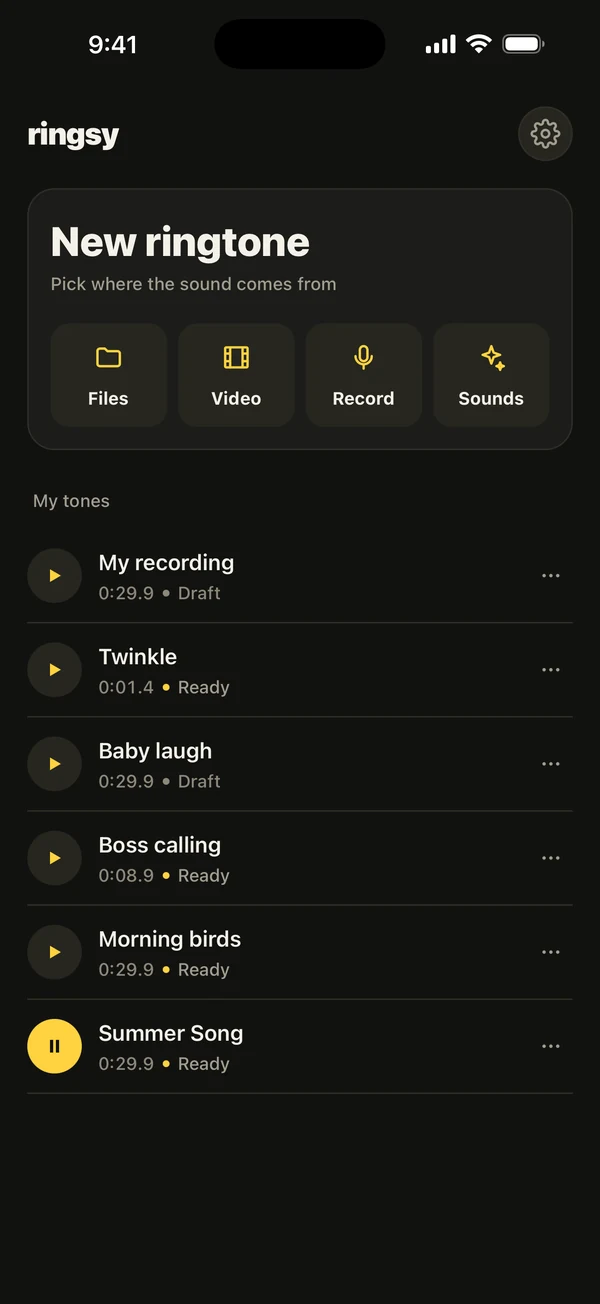
On iOS 26 and later, Ringsy can set a tone as a real alarm of its own (using Apple's alarm framework, so it rings in Silent mode or a Focus, with Snooze). Choose Set as alarm from a tone, then pick how the alarm chooses its tone:
- One tone: the same sound each time.
- Per day: choose the repeat days first, then give each day its own tone. Ringsy sets one alarm per day and lists them as one entry.
- Shuffle: the alarm rings with a random favorite. Star at least two tones first (⋯ › Add to favorites in your library).
Shuffle has one limit you should know. Ringsy can only change the pick while the app runs: after the alarm rings, the next sound is chosen the next time you open Ringsy. If you don't open it, the alarm rings the last pick again.
You can also add Gentle wake, where the sound fades in over 20 or 30 seconds. Alarm sounds are limited to about 30 seconds, so the fade can't be longer. The first time, iOS asks you to let Ringsy schedule alarms.
What does it cost?
Making and previewing tones is free, and a tone set as a one-sound alarm uses one of your two free exports. A tone per day, shuffle and Gentle wake are part of Ringsy Unlimited, a one-time purchase with no subscription. Sounds are edited on your iPhone and are not uploaded.
Quick facts
- Each Clock alarm has one sound; a different sound per weekday means one alarm per day.
- Clock has no random or shuffle sound.
- Custom alarm sounds must be ringtones, under 30 seconds.
- Ringsy's per-day and shuffle alarms need iOS 26 or later and Ringsy Unlimited; shuffle re-picks only when the app is opened.
Frequently asked questions
- Can I set a different alarm sound for each day on iPhone?
- Yes, by making one alarm per day. Each alarm in the Clock app has its own repeat days and its own sound, so create an alarm that repeats on one weekday and choose its sound.
- Can the iPhone alarm play a random song or sound?
- Not in the Clock app, which plays the one sound you picked. Options are a Shortcuts automation that plays music on shuffle, or an app such as Ringsy (iOS 26 or later) that picks a random favorite for its own alarm.
- Will a Shortcuts automation wake me up like an alarm?
- It isn't a Clock alarm and has no Snooze, and whether it sounds with the Silent switch or a Focus on varies, so test it first and keep a normal alarm as a backup.
- Does Ringsy's shuffle change the sound every day by itself?
- Not entirely. The new pick is made when you open Ringsy after the alarm has rung. If the app isn't opened, the alarm rings the previous pick.