Can you use a Spotify or Apple Music song as an iPhone ringtone?
Published October 9, 2026 · 6 min read
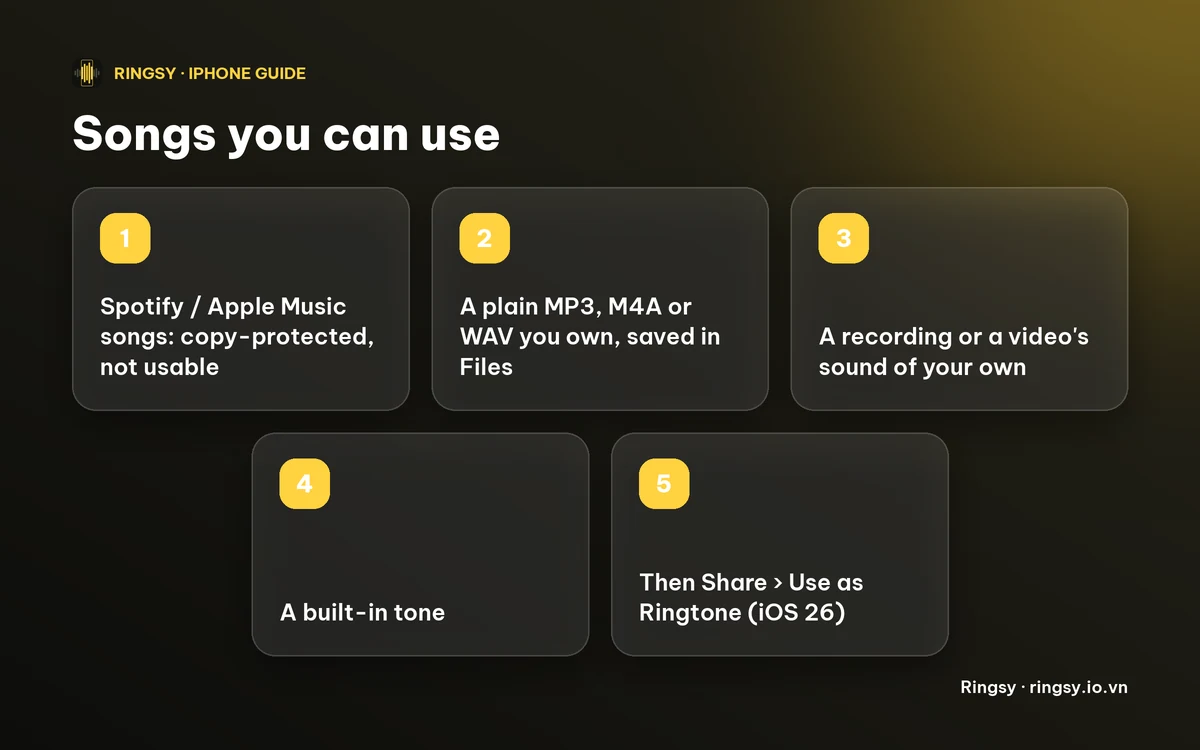
No: a song you stream or download inside Spotify or Apple Music can't be set as an iPhone ringtone, and no app can change that. Those songs are copy-protected (DRM) and only play inside the app that streams them. To ring with a song you love, you need a copy that is a normal audio file you own, or a different sound such as a recording or one of the built-in tones.
This guide explains why the block exists, how to check whether a file is usable, and the ways that do work. Most of it applies to any ringtone app, whether or not you ever install Ringsy.
Why can't I use a streaming song as a ringtone?
A ringtone has to be an audio file that other apps are allowed to read and cut. Songs from streaming services are encrypted so that they play only inside the service's own app, and only while your subscription is active. “Downloaded for offline listening” in Spotify or Apple Music doesn't change that: the download is still an encrypted copy that the app keeps to itself, and it never shows up in the Files app.
That's why you won't find a “Set as ringtone” button in those apps, and why any app promising to export a streaming song directly deserves suspicion. A ringtone maker can't pull the protected audio out of your Music library. Ringsy, for example, deliberately doesn't offer the Music library as a source, and if you hand it a copy-protected file it tells you the file “is copy-protected” and can't be used.
How can I tell if a file is usable?
- It lives in the Files app (On My iPhone, iCloud Drive or a folder you downloaded it to) and you can open it with Quick Look. A normal MP3, M4A or WAV does.
- You, or the person who gave it to you, own it as a plain file: a song you bought as a download, a track you ripped from a CD you own, a recording you made, or a sound you created.
If it plays in Quick Look, it can normally be trimmed and used. If it only plays inside a streaming app, it can't.
What can I do instead?
There are four honest routes to a ringtone you like:
- Use a file you own. If you bought the song as a plain MP3 or M4A download, or have it from a CD you own, save it to Files and turn it into a ringtone.
- Record something yourself: your voice, an instrument, a sound from around you. Our voice memo guide covers it.
- Use the sound of a video you filmed or have the right to use. See the guide on turning a video's sound into a ringtone.
- Pick a built-in sound. Ringsy includes a set of original tones, and iOS has its own ringtone list in Settings › Sounds & Haptics › Ringtone.
Copyright still applies to music you own a copy of. A personal ringtone on your own phone is a private use, but publishing or selling ringtones made from other people's songs is not something a how-to guide can make okay.
How do I turn a file I own into a ringtone?
- 1Save the file in the Files app.
- 2Open Ringsy, tap Files under New ringtone and pick the file.
- 3Drag the yellow frame to the part you want. A ringtone can be at most 29.9 seconds, the iPhone limit. Optionally tap Best part to let the app suggest a section, and add a fade.
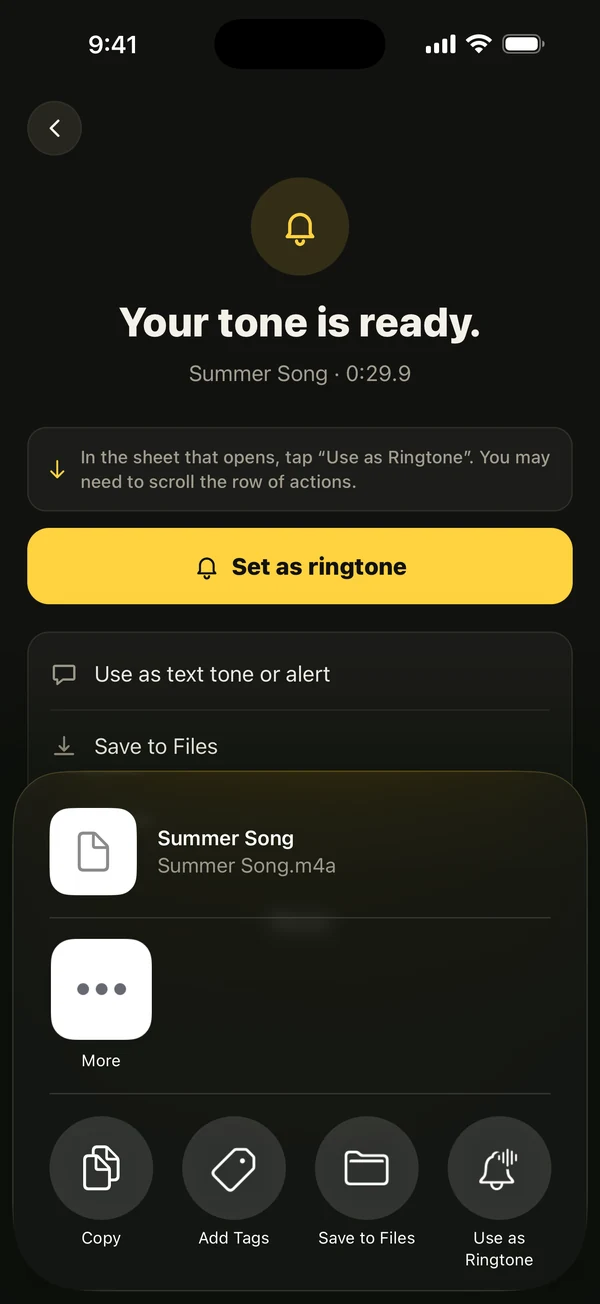
- 4Tap Save & set as ringtone. On iOS 26 the share sheet opens with Use as Ringtone; on iOS 17–18 the app walks you through a GarageBand export, because that's the route Apple allows there.
- 5Choose the tone in Settings › Sounds & Haptics › Ringtone, or per contact in Contacts › Edit › Ringtone.
Everything is trimmed on your iPhone and the sound isn't uploaded anywhere. Your first two exported ringtones are free; after that Ringsy Unlimited is a one-time purchase with no subscription. If you'd rather not use an app, our guide to making a ringtone without a computer covers GarageBand and the iOS 26 route.
What about recording the song as it plays?
Some pages suggest playing the song from the speaker while an app records it with the microphone. That works only in a technical sense: you capture the room as well as the music, the quality is noticeably worse than the file, and you are still copying a protected recording, so we don't recommend it. A clean file you own, or a short recording of a sound you made yourself, gives a much better ringtone.
Quick facts
- Spotify and Apple Music songs are DRM-protected, including offline downloads; no ringtone app can use them.
- Plain MP3, M4A or WAV files you own work, if they're in the Files app.
- An iPhone ringtone has to be under 30 seconds.
- “Use as Ringtone” in the share sheet arrived with iOS 26; earlier iOS versions go through GarageBand.
Frequently asked questions
- Can I set a Spotify song as my iPhone ringtone?
- Not directly. Spotify songs, including offline downloads, are protected and only play in the Spotify app. You can use a copy of the song that you own as a plain audio file, or a recording or built-in sound.
- Can I use an Apple Music song as a ringtone?
- Not a song you only have through an Apple Music subscription: it's DRM-protected and can't be exported. A file you own outright and can open in the Files app can be used.
- Why does a ringtone app say my file is copy-protected?
- The file is DRM-protected, which is how streaming services stop songs from being copied. Use a plain audio file you own instead; Ringsy shows the message “This file is copy-protected” for these files.
- Is there a free way to make a ringtone from a song I own?
- Yes. GarageBand is free from Apple and can export a ringtone, and Ringsy's first two exported ringtones are free. Either needs a file that isn't copy-protected.