How to make your iPhone announce who's calling
Published October 3, 2026 · 7 min read
To make your iPhone announce who's calling, turn on Announce Calls in Settings (search for “Announce Calls”) and choose Always: Siri then says the caller's name over the ringtone. If you want the name spoken in Vietnamese or in your own words, such as “Mom is calling”, make a ringtone that says it and set it for that contact; Ringsy creates one from text with the iPhone's own voices.
Hearing who's calling is useful when the phone is across the room, in a bag, on the dashboard or in the kitchen while your hands are busy. This guide covers the built-in setting, its limits, and how to give your most important callers a ringtone that says their name.
Can an iPhone say who's calling?
Yes. There are two ways, and they work differently:
- Announce Calls: a built-in setting. Siri reads the name saved in Contacts for every incoming call, in Siri's language and voice.
- A name ringtone: an audio file that says “Mom is calling” (or anything you type), set as the ringtone for one person. You choose the words, the language and the voice, and each person can have their own.
Many people use both: Announce Calls for everyone, and a name ringtone for the two or three callers they never want to miss.
How do I turn on Announce Calls?
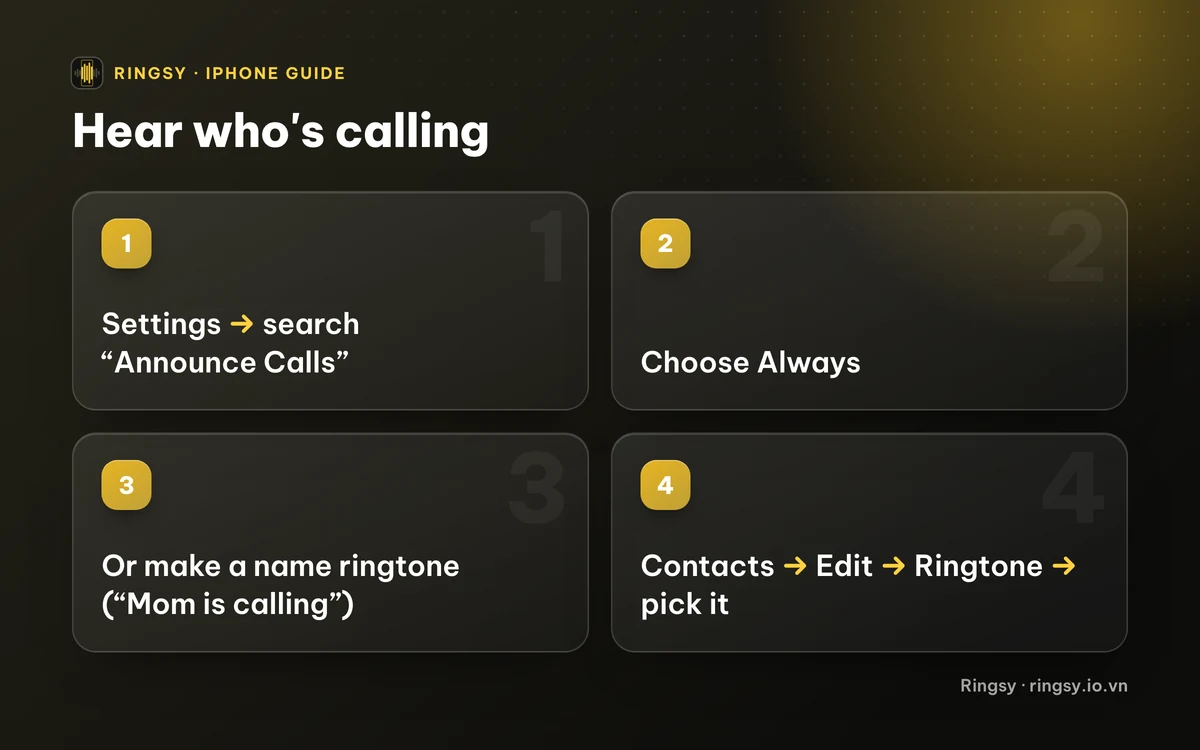
- 1Open Settings and type “Announce Calls” in the search field at the top. Depending on your iOS version the setting lives under Siri or under Phone; search finds it either way.
- 2Tap Announce Calls.
- 3Choose Always to hear the name from the iPhone's speaker. The other options limit it to headphones and the car, or to headphones only.
- 4Ask someone in your Contacts to call you and check that you hear the name.
Siri announces the name as it's saved in Contacts, so a contact saved as “Hoa Nguyen (work)” is read exactly like that. A short, clear contact name sounds best. For a number that isn't in your Contacts there is no name to read.
Why doesn't my iPhone announce calls?
If you turned it on and still hear only the ringtone, check these in order:
- Announce Calls is set to Headphones only, or Headphones & Car. Choose Always to hear it from the speaker.
- The Ring/Silent switch or the Action button has the iPhone in Silent mode, or a Focus is silencing the call. If the phone doesn't ring, it won't announce either; our guide to an iPhone that doesn't ring walks through every setting.
- The caller isn't in your Contacts, so there is no name to say.
- The name sounds wrong. Siri reads names in Siri's language, so a Vietnamese name can come out with English pronunciation when Siri is set to English. A name ringtone avoids this, because you pick the voice and language yourself.
How do I make a ringtone that says the caller's name?
With Apple's apps only, you can record your own voice:
- 1Open Voice Memos and record yourself (or the person, with their permission) saying “Mom is calling” two or three times. Keep it under 30 seconds.
- 2Trim the silence at the start: tap the recording, then ⋯ › Edit Recording and the trim tool.
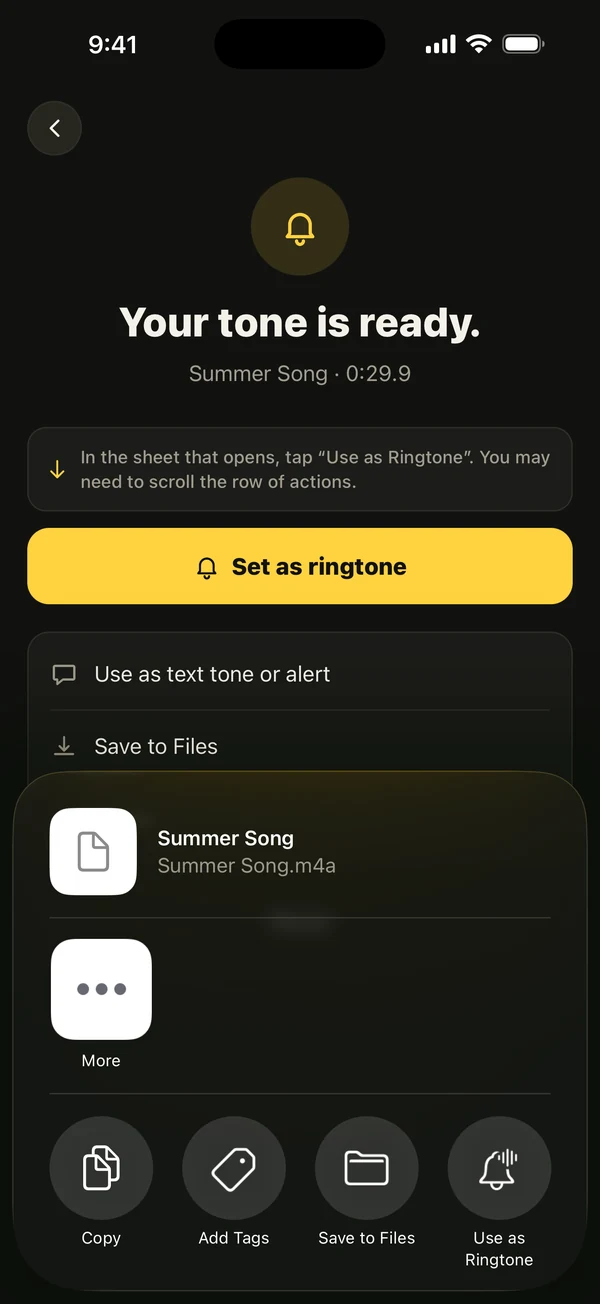
- 3Turn the recording into a ringtone: on iOS 26, share it and tap Use as Ringtone; on iOS 17–18, go through GarageBand. Our guide to turning a voice memo into a ringtone has both routes.
- 4Open Contacts, choose the person, tap Edit › Ringtone and pick the new tone.
Everyone else keeps your default ringtone, so the voice tells you at once that this call is the one that matters.
How does Ringsy make it easier?
Ringsy's name ringtone skips the recording. You type what should be said and the iPhone speaks it:
- 1On Ringsy's Home screen, under New ringtone, tap Name.
- 2Type the words, for example “Mẹ gọi kìa!” or “The boss is calling”, or tap one of the suggestions.
- 3Choose a language and one of the voices installed on your iPhone. More natural voices can be downloaded in Settings › Accessibility › Spoken Content › Voices.
- 4Optionally add a background tone from Ringsy's built-in sounds, and choose how many times the line is said: 1×, 2×, 3× or 5×. Tap Preview to hear it.
- 5Tap Make ringtone. It opens in the editor like any other sound, where you can trim it, add a fade and tap Save & set as ringtone: “Use as Ringtone” on iOS 26, or a guided GarageBand export on iOS 17–18.
- 6Use the Set for one contact guide on the export screen, or go to Contacts › Edit › Ringtone yourself.
The text is spoken on your iPhone and never sent anywhere. Your first two exported ringtones are free; after that, Ringsy Unlimited is a one-time purchase with no subscription.
Quick facts
- Announce Calls is built into iOS and reads the Contacts name in Siri's language.
- A name ringtone is a regular ringtone, under 30 seconds, that you set per contact in Contacts › Edit › Ringtone.
- iOS doesn't let any app set a contact's ringtone for you; that last step is always yours, in Contacts.
- Neither way works in Silent mode: no ring means no announcement.
Frequently asked questions
- Can my iPhone announce callers in Vietnamese?
- Announce Calls speaks in Siri's language, so a Vietnamese name may be read with another language's pronunciation. A name ringtone made with a Vietnamese voice says it the way you type it; set it for that contact in Contacts › Edit › Ringtone.
- Does Announce Calls work for numbers not in my Contacts?
- There's no saved name to read, so you won't hear a name for an unknown number. Add the number to Contacts with a short name if you want it announced.
- Can I use both Announce Calls and a name ringtone?
- Yes, but for the same caller you'll hear Siri and the ringtone speak at once, which can be hard to follow. Many people keep Announce Calls for headphones and the car, and use name ringtones on the speaker.
- Does Ringsy need access to my contacts?
- No. Ringsy's name ringtone works from the words you type. Assigning the finished tone to a person happens in Apple's Contacts app, by you.