How to play a sound when you open an app on iPhone (or when you arrive somewhere)
Published November 16, 2026 · 6 min read
iPhone has no setting called “app open sound”, but you can get the same result with Apple’s free Shortcuts app: a personal automation that plays a sound every time an app you choose is opened, or when you arrive at a place such as home or work.
This guide gives the exact steps, the one-time catch with the sound file, what the automation can’t do, and what to check when it stays silent. The menu names below are for iOS 26; older versions word a few of them differently.
What this can and can’t do
- It can play a sound when a chosen app is opened (or closed), when you arrive at or leave a place, at a time of day, when a Focus turns on, or when you tap an NFC tag.
- It can’t change the sounds iOS makes itself: the lock sound, the keyboard click or another app’s notification sound. Our guide to app notification sounds explains what iOS lets you change.
- It plays your sound in addition to whatever the app does, so a game that starts its own music will still start it.
What you need
- The Shortcuts app, which comes with iOS.
- A short sound saved on the phone. One to three seconds is best, because it plays every single time. You can use a clip from Files, a voice memo, or a sound you trimmed in a ringtone app.
- For “Arrive”, Location Services switched on for Shortcuts when iOS asks.
Play a sound when an app opens
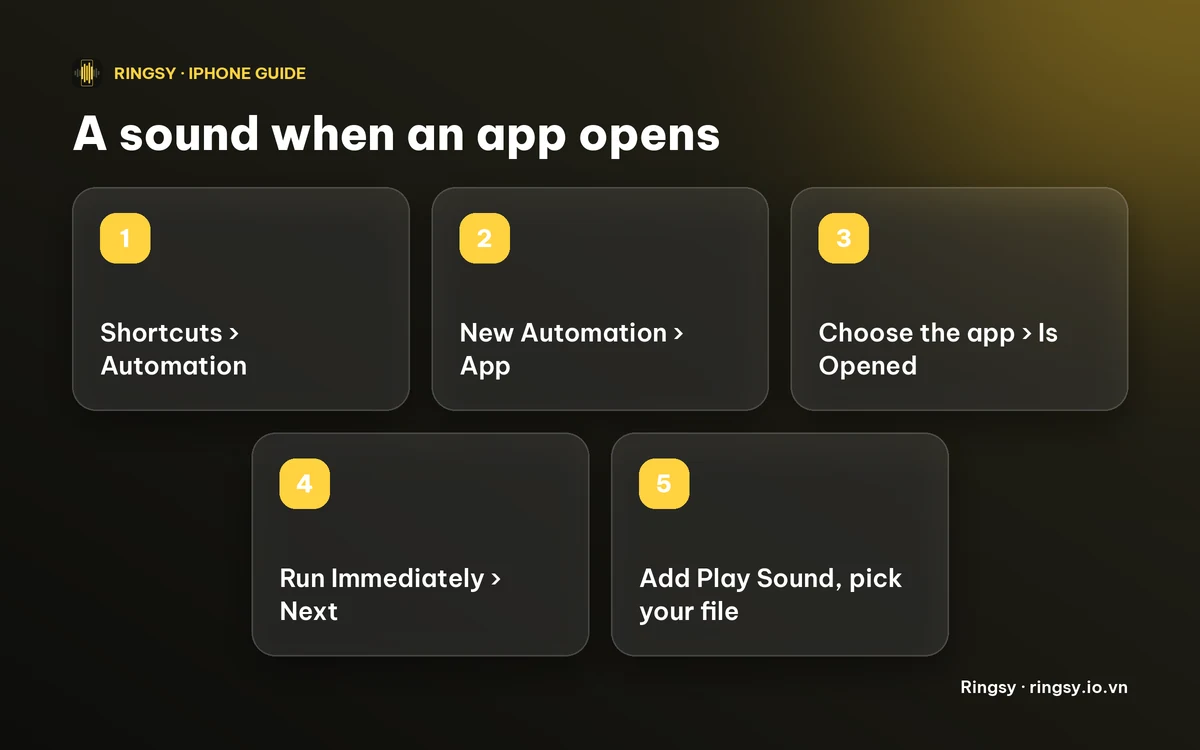
- 1Open Shortcuts and tap Automation at the bottom of the screen.
- 2Tap New Automation (or + at the top right).
- 3Choose App, tap Choose, tick the app or apps you want, and select Is Opened.
- 4Select Run Immediately. Turn off Notify When Run if you don’t want a banner every time. Tap Next.
- 5Tap New Blank Automation (on iOS 17 and 18) and Add Action, then search for “Play Sound” and add it.
- 6Tap the sound field in the action and pick your file. On some iOS versions you add a “Get File” action first to choose the file and put Play Sound after it.
- 7Tap Done, then open the app to test it.
Play a sound when you arrive home or at work
Follow the same steps, but in step 3 choose Arrive instead of App, then pick the place. Choose Run Immediately as before.
iOS decides when it has detected that you arrived, so the sound can come a little after you reach the door, not at the exact second. If you need it to be predictable, an NFC tag or a time of day is more exact than a place.
If the sound doesn’t play
- Open Shortcuts › Automation and check the automation is switched on. iOS shows an empty circle or a disabled label for one that is off.
- Check it says Run Immediately. With Run After Confirmation you get a notification to tap instead of a sound.
- Turn the volume up. The sound uses the phone’s media volume, so a phone turned all the way down plays it silently.
- Re-pick the file if you moved, renamed or deleted it in Files. The automation points at the original.
- Test it with the Play button inside the automation. If that plays but opening the app doesn’t, the trigger is the problem: edit the automation and choose the app again.
Choosing a sound you won’t get tired of
- Keep it short and clean: one chime, one word or one short effect.
- Keep it quiet enough for a bus, a meeting or a bedroom, since you will hear it every time.
- Don’t set it on an app you open fifty times a day. A banking app or a camera is a better fit than a messaging app.
Where Ringsy helps
Ringsy’s Sounds for moments feature does the sound part for you. You pick a moment, such as an app opening or arriving somewhere, then a short built-in sound or one of your own tones, and choose how much of it to play. It then shows the Shortcuts steps one screen at a time. The automation uses Ringsy’s action “Play a Ringsy sound”, so it keeps working with Ringsy closed, and the app shows when Shortcuts last played it.
The built-in short sounds are free. Using one of your own tones counts as one of the two free exports; after that, Ringsy Unlimited is a one-time purchase with no subscription. Everything is done on your iPhone and nothing is uploaded.
Quick facts
- Shortcuts › Automation › New Automation › App › Is Opened › Run Immediately › Play Sound.
- Arrive, Time of Day, Focus and NFC work the same way.
- It adds a sound; it can’t replace system sounds.
- Short files work best. Check volume, Run Immediately and the file location first.
Frequently asked questions
- Can I make my iPhone play a sound when I open an app?
- Yes, with a Shortcuts personal automation. Choose App, pick the app, select Is Opened and Run Immediately, then add a Play Sound action with your file.
- Why doesn’t my iPhone automation play the sound?
- Usually the automation is off, set to Run After Confirmation, the volume is down, or the sound file moved. Test it with the Play button inside the automation.
- Can I play a sound when I arrive home on iPhone?
- Yes. Choose Arrive in Shortcuts instead of App and pick the place. iOS decides when it detects your arrival, so the sound may come a moment late.
- Can I change the iPhone’s lock sound or another app’s notification sound this way?
- No. A Shortcuts automation adds a sound; it doesn’t replace the sounds iOS or other apps make.
- Does Ringsy cost anything for this?
- Ringsy’s short built-in sounds are free for this. A tone of your own counts as one of the two free exports, then Ringsy Unlimited is a one-time purchase.