How to change the new voicemail sound on iPhone (and your greeting)
Published October 16, 2026 · 5 min read
To change the sound your iPhone makes for a new voicemail, open Settings › Sounds & Haptics › New Voicemail and tap a tone. To change what callers hear when you don’t answer, that is a different setting: open Phone › Voicemail › Greeting.
People search for “change voicemail sound” and mean either one, so this guide covers both, then shows how to use a tone of your own for the alert.
Which voicemail sound do you want to change?
- The alert you hear. It plays on your iPhone when someone leaves you a voicemail. It is set in Settings › Sounds & Haptics › New Voicemail.
- The greeting callers hear. It is the message played to the person calling you, before the beep. It is set inside the Phone app, in the Voicemail tab.
The two are unrelated: changing one never changes the other, and neither affects your ringtone.
How do I change the new voicemail alert?
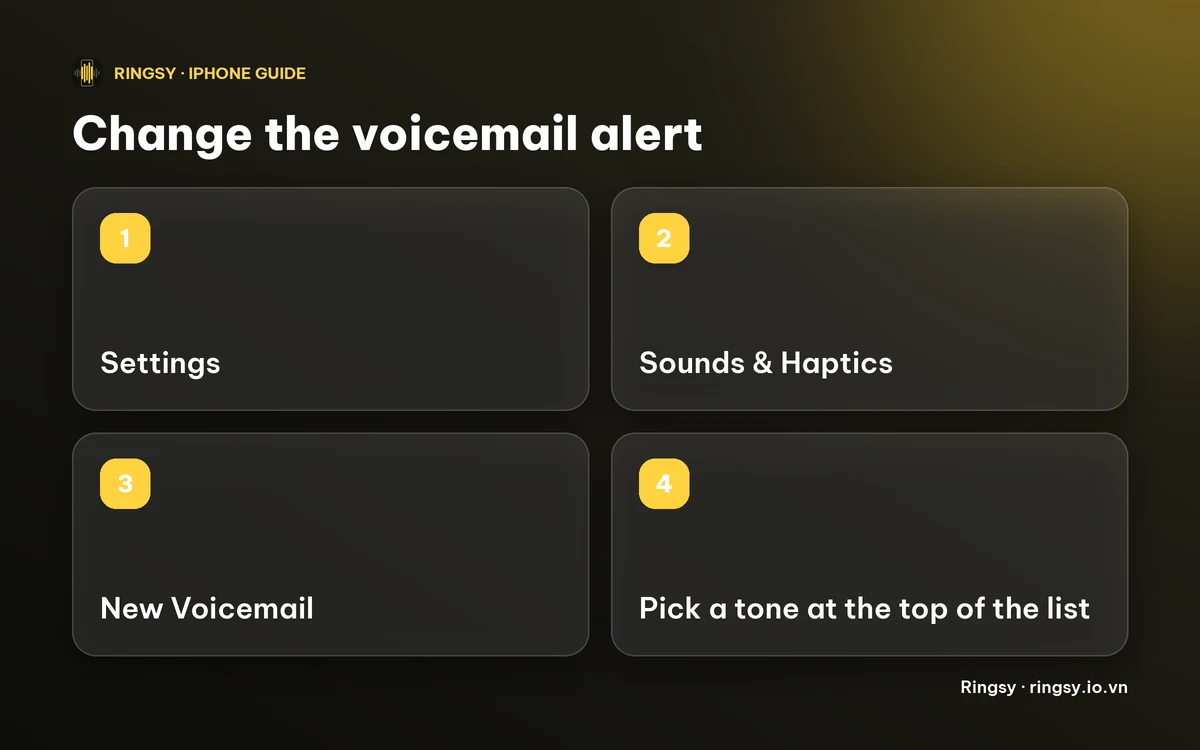
- 1Open Settings and tap Sounds & Haptics.
- 2Under Sounds and Haptic Patterns, tap New Voicemail.
- 3Tap a tone to hear it. Tapping also selects it, so there is no Save button. Choose None for silence, if you prefer to check voicemail yourself.
- 4Optionally tap Haptics at the top to change the vibration that goes with it.
Your own tones appear at the top of the list, under Ringtones, and Apple’s alert tones are below them. Menu names can differ slightly between iOS versions.
How do I change my voicemail greeting?
- 1Open Phone and tap the Voicemail tab.
- 2Tap Greeting at the top left.
- 3Choose Default for the standard message, or Custom to record your own, then tap Record, speak and tap Stop.
- 4Tap Play to hear it, then Save.
Voicemail is provided by your carrier, so which options you see can depend on your carrier and plan. The greeting is a spoken message, so it cannot be a ringtone or a song, and it is recorded in the Phone app rather than imported from a file.
Can I use my own sound for the voicemail alert?
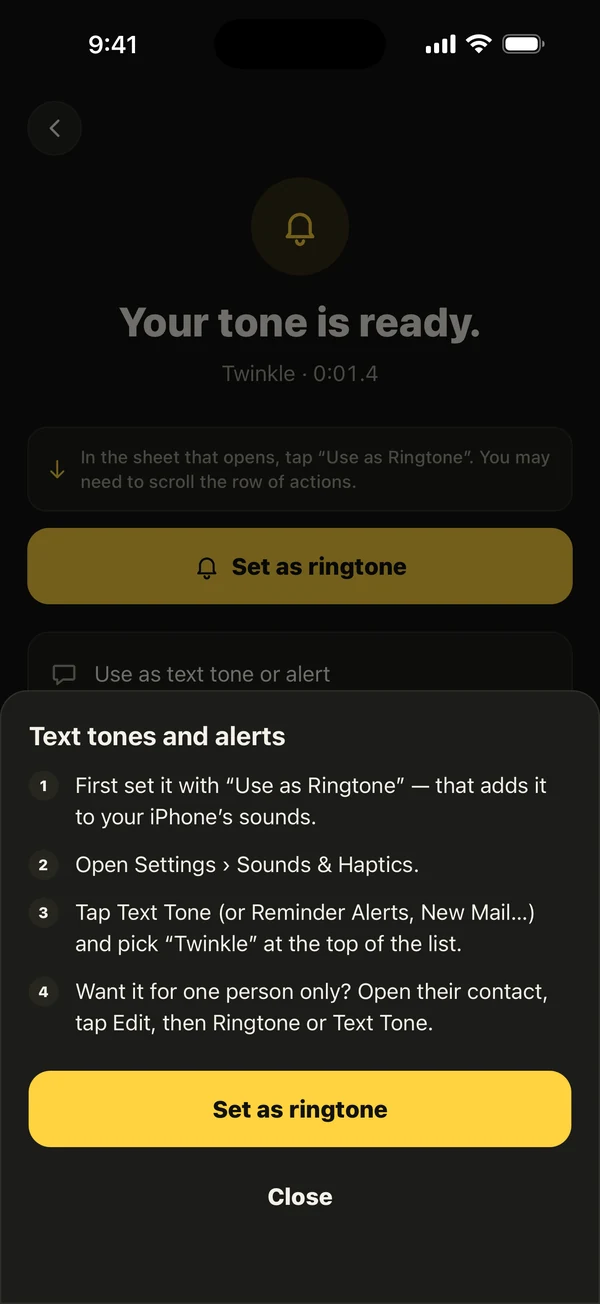
Yes. The New Voicemail list shows the tones you have added, the same way Text Tone does. So the job is to turn a short sound into a tone on your iPhone and then pick it in that list.
- On iOS 26 and later, share an audio file from Files or a recording from Voice Memos and tap Use as Ringtone.
- On iOS 17 and 18, import the sound into GarageBand and use Share › Ringtone, then Use sound as… or pick it later in Settings.
Keep it short. An alert plays once, so one to three seconds is plenty, and it should start straight away rather than with a slow fade. Choose something unlike your ringtone and your text tone so you can tell what it is without looking. Our guide to custom text tones walks through making a short clip in more detail.
Can I set a different voicemail sound for each caller?
No. The New Voicemail alert is one setting for the whole phone. Contacts let you set a ringtone and a text tone per person, but not a voicemail alert, so a voicemail from your boss and one from a stranger sound the same.
If you want to know who is calling before you pick up, a per-contact ringtone does that during the call. Our guide to a different ringtone for each contact has the steps.
Why don’t I hear the voicemail sound?
- The iPhone is on Silent. Alerts are muted then; the voicemail still arrives.
- A Focus is on and Phone notifications are not allowed through it.
- The alert is set to None.
- Voicemail isn’t set up with your carrier, or the carrier delivers it a different way, for example as a text message. Then the sound you hear is the Text Tone, not New Voicemail.
- A custom tone you chose was removed from your tones, so iOS fell back to a default. Add it again and re-pick it.
Where Ringsy helps
Ringsy, our ringtone maker for iPhone, has a short original alert made for this: Voicemail Bell, a warm two-tone bell of under two seconds. Open Sounds, find Alert tones for your apps, tap Use next to Voicemail Bell, then Save & set as ringtone. On iOS 26 and later tap Use as Ringtone in the share sheet; on iOS 17 and 18 Ringsy guides you through the GarageBand steps. Then pick it in Settings › Sounds & Haptics › New Voicemail.
You can also make your own clip from a file, a video or a recording in the editor. Sounds are made on your iPhone and nothing is uploaded. Your first two exported tones are free, and after that Ringsy Unlimited is a one-time purchase with no subscription.
Quick facts
- New Voicemail alert: Settings › Sounds & Haptics › New Voicemail.
- Greeting callers hear: Phone › Voicemail › Greeting.
- The alert is one setting for the whole phone, not per contact.
- Use a short tone, one to three seconds, that starts right away.
Frequently asked questions
- How do I change the voicemail sound on iPhone?
- For the alert you hear when a voicemail arrives, open Settings › Sounds & Haptics › New Voicemail and tap a tone. For the message callers hear, open Phone › Voicemail › Greeting.
- Can I use a song as my voicemail alert?
- You can use any short sound you have turned into a tone on your iPhone, but keep it to a few seconds. Apple Music and Spotify songs are protected and cannot be used this way.
- Can I set a different voicemail alert for each contact?
- No. iOS lets you set a ringtone and a text tone per contact, but the new voicemail alert is a single setting for the whole iPhone.
- Does changing my ringtone change the voicemail sound?
- No. Ringtone, Text Tone and New Voicemail are separate rows in Settings › Sounds & Haptics, each with its own list.