Emergency Bypass not working on iPhone? Why a contact still doesn’t ring and how to fix it
Published November 12, 2026 · 5 min read
Emergency Bypass is meant to let one person’s calls or texts make a sound even when your iPhone is on Silent or a Focus such as Do Not Disturb or Sleep is on. When it does not, the cause is usually one of a few small things: the switch is on for calls but not texts, the number does not match, or the volume is low.
This guide goes through them in the order we would check. Menu names move a little between iOS versions, and Apple does not document every edge case, so where something comes from users’ reports rather than Apple, we say so.
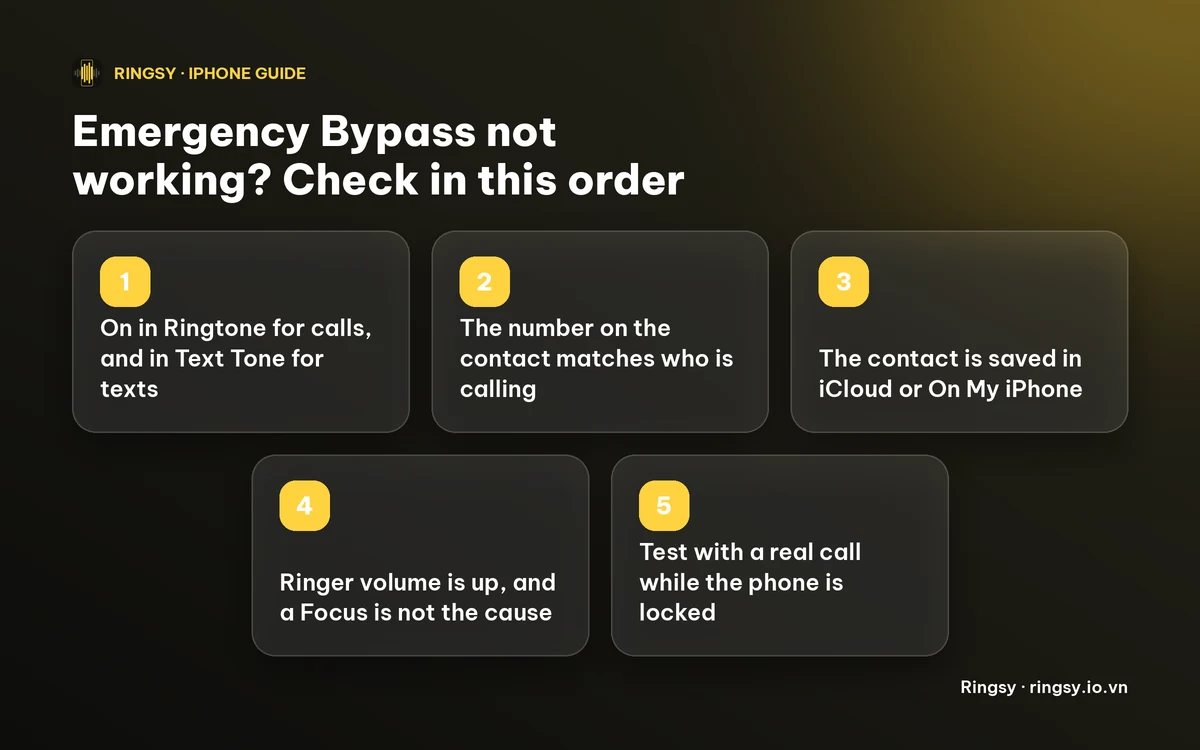
1. Check the switch, for calls and for texts
Emergency Bypass is set per contact, and calls and texts each have their own switch.
- 1Open Contacts and tap the person.
- 2Tap Edit, then Ringtone. Turn on Emergency Bypass, then tap Done or Back.
- 3For texts, go back to Edit, tap Text Tone and turn on Emergency Bypass there too.
A very common mix-up is turning it on under Ringtone and expecting their messages to come through. They will not unless Text Tone has it on as well.
2. Check the number on the contact
Emergency Bypass works by matching the incoming number to a saved contact. If the person calls from a number that is not on their card (a second SIM, a work line, a new number), it has nothing to match, and the call is treated like any other.
Open the contact and compare the number with what shows in Recents when they call. Some users report that a number saved in a different format, for example with or without the country code, stopped the bypass until they re-entered it. Apple does not say this, so treat it as a thing to try rather than a rule.
Users also report that bypass does not work for messages from a business that shows a name instead of a number (an alphanumeric sender such as a bank or a delivery service), since those are not a saved contact’s number.
3. Check where the contact is stored
Some users report that the setting did not hold for contacts kept in an account such as Exchange, and worked after they moved the contact to iCloud or to On My iPhone. This too comes from user reports, not from Apple, but it is quick to test: create a new contact with the same number under iCloud, turn Emergency Bypass on for it, and ask the person to call.
If you see two cards for the same person, the one with Emergency Bypass on may not be the one that matches. Link or delete the duplicate.
4. Check the volume, and rule out a Focus setting
Emergency Bypass makes the alert play when it normally would not, but we have no sign that it turns the ringer up. If your ringer volume is very low, a bypassed call may be quiet. Check Settings › Sounds & Haptics and raise the Ringtone and Alerts slider.
If a Focus is on, also look at Settings › Focus. A person you add under People as allowed will ring through that Focus without Emergency Bypass at all, and that is often a cleaner fix when the Focus is on a schedule.
5. Other things users report
- Toggling Emergency Bypass off, saving, then on again, or restarting the phone, cleared it for some users.
- A few users said bypass behaved differently after pairing an Apple Watch, and it worked again with the watch off. We cannot confirm that, so it is a quick thing to try.
- Keeping iOS up to date matters, since Apple has changed how Focus and notifications behave across versions.
6. Test it properly
Ask the person to call you while your phone is locked, set to Silent and with the Focus on. Testing with the screen unlocked, or on a call from a different number, tells you little. Try a text separately, because it uses its own switch.
If a call from that exact number still makes no sound after all of the above, the problem is more likely the Focus or the ringer than the contact, and Apple Support can look at your device. Our guide to an iPhone that does not ring for incoming calls has the wider checklist.
Where Ringsy helps
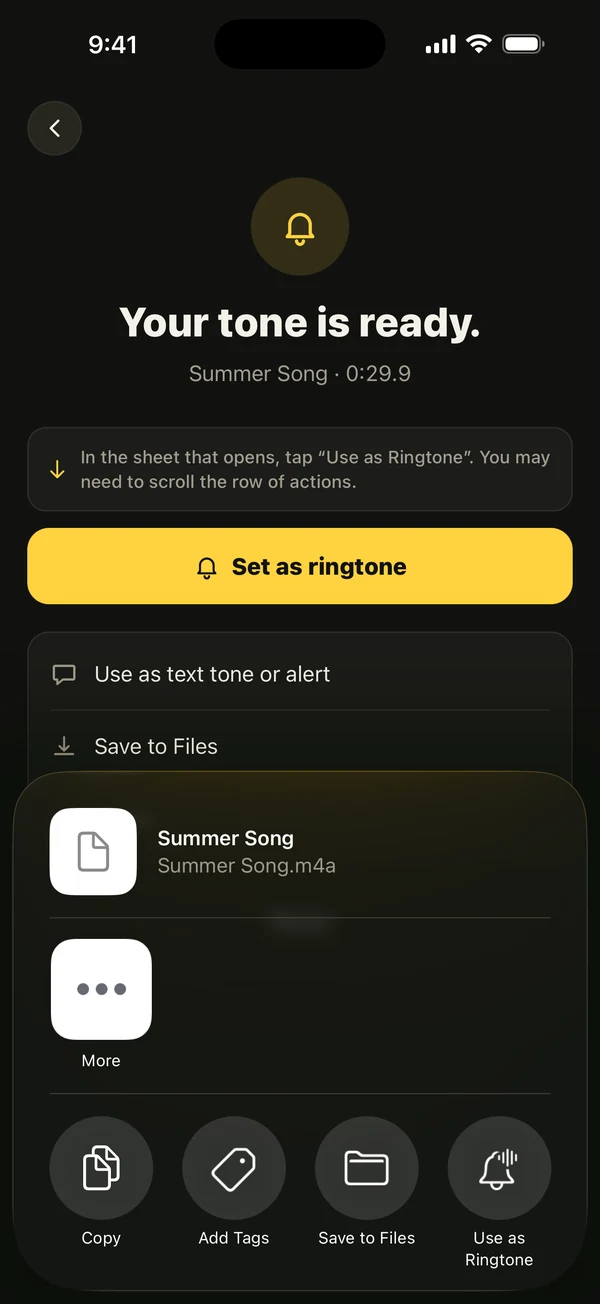
Ringsy does not switch Emergency Bypass on; that is a setting in Contacts. What it helps with is making the person who gets through easy to recognise. Trim a song, a recording or a video’s sound, save it as a ringtone, then give it to that one contact under Contacts › Edit › Ringtone, where the bypass switch also lives. Ringsy has a step-by-step sheet for setting a tone for one contact. Sounds are processed on your iPhone and never uploaded. Two exports are free; Ringsy Unlimited is a one-time purchase with no subscription.
Quick facts
- Emergency Bypass is a per-contact switch on the Ringtone screen (calls) and on the Text Tone screen (texts).
- It matches the incoming number to the saved contact.
- Do not count on it to raise the ringer volume.
- Allowing a person in a Focus is a separate way to let them through.
- Storage location and number format are user-reported causes, not Apple-documented ones.
Frequently asked questions
- Why is Emergency Bypass not working for texts?
- Text Tone has its own Emergency Bypass switch, separate from the one under Ringtone. Open the contact, tap Edit › Text Tone and turn it on there as well.
- Does Emergency Bypass work if my iPhone is on Silent?
- That is what it is meant for: the person’s calls and texts should still sound when the Ring/Silent switch is on silent or a Focus is on. If it does not, go through the number, storage and volume checks above.
- Does Emergency Bypass make the ringtone louder?
- We have no sign that it does. It lets the alert play when it otherwise would not, so check your ringer volume in Settings › Sounds & Haptics.
- Can Ringsy turn on Emergency Bypass for a contact?
- No. It is a setting in Contacts. Ringsy makes the tone you give that contact.