How to make a TikTok sound your iPhone ringtone
Published October 2, 2026 · 7 min read
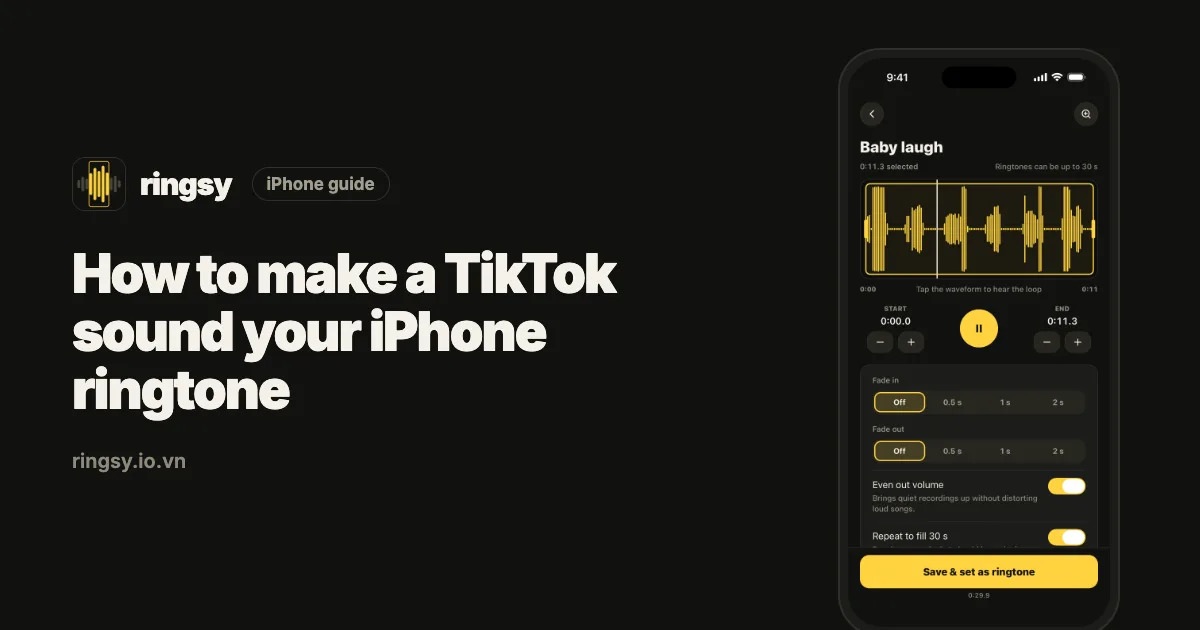
To make a TikTok sound your iPhone ringtone, save the video to Photos from TikTok's Share menu (or screen-record it if saving is turned off), take the audio out, trim the part you want to under 30 seconds, and set it with “Use as Ringtone” on iOS 26 or through GarageBand on iOS 17 and 18. Ringsy does the last three steps in one place: open the saved video in its Video source and the sound appears on a waveform, ready to cut and set.
TikTok has no “set as ringtone” button, and adding a sound to your Favorites only keeps it inside TikTok. The sound has to become an audio file on your iPhone first. This guide covers every step with Apple's own apps, which part of a TikTok sound makes a good ringtone, and where an app saves time.
Can you use a TikTok sound as a ringtone?
Yes, as long as you can get the video onto your iPhone. What works and what doesn't:
- A video that TikTok lets you save: the easiest case. The sound comes with it.
- A sound you only added to Favorites: that's a bookmark inside TikTok, not a file. Open a video that uses the sound and save that video instead.
- A video with saving turned off by its creator: a screen recording captures the picture and the sound (see below).
- Music on TikTok is licensed for TikTok. Using a clip as the ringtone on your own phone is a personal use; sharing it on as a ringtone pack is not, so keep it for yourself.
How do I save a TikTok video to my iPhone?
- 1In TikTok, open the video with the sound you want.
- 2Tap the Share arrow on the right.
- 3Tap Save video. The first time, allow TikTok to add to your Photos.
- 4The video appears in the Photos app, in Recents.
If there's no Save video button, the creator has turned downloads off. You can screen-record instead: open Control Center, tap Screen Recording, wait for the countdown, play the video in TikTok, then tap the red indicator at the top to stop. The recording is saved in Photos with the app's sound; the microphone stays off unless you turn it on by touching and holding the record button.
A saved TikTok video may end with a short TikTok logo clip with its own sound. You'll leave that part out when you trim.
How do I turn the video into a ringtone with Apple's apps?
iPhone can't set a video as a ringtone directly, so the audio comes out first. All of this works with apps from Apple:
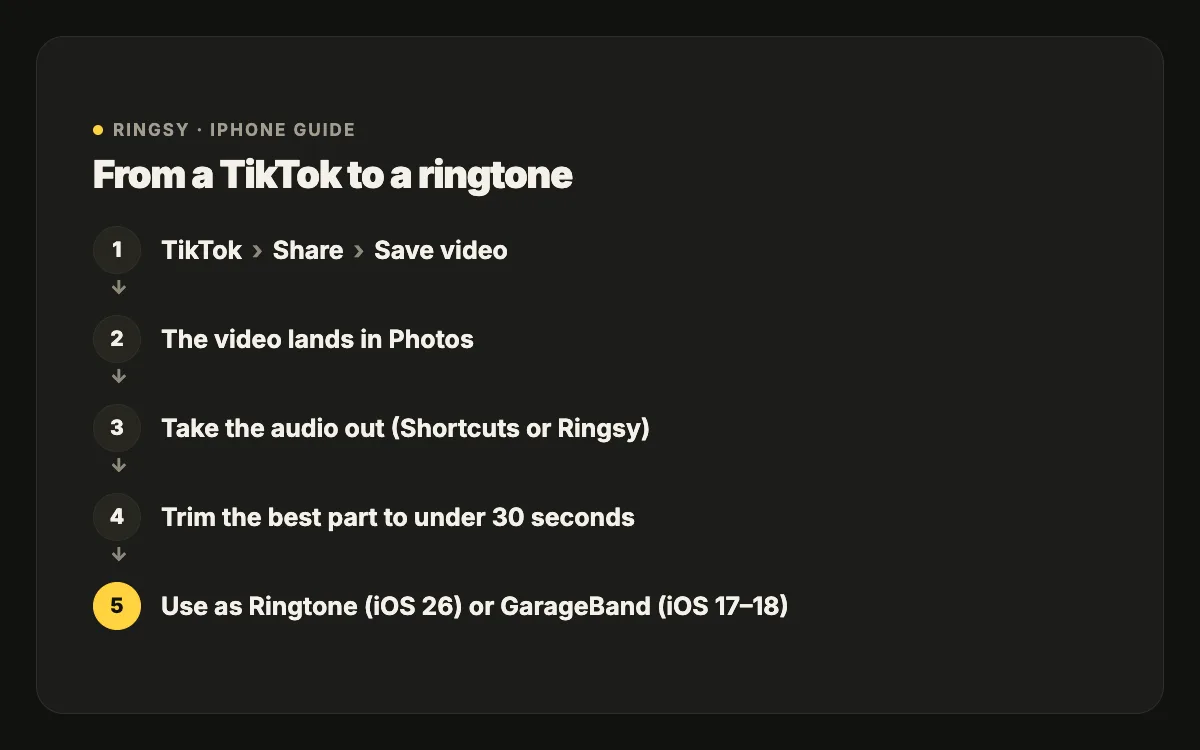
- 1Take the sound out of the video with a Shortcuts shortcut that uses Encode Media with Audio Only and saves the result to Files. You build it once and reuse it from the share sheet; our guide on turning a video's sound into a ringtone has every step of the shortcut.
- 2Trim the audio to the part you want, under 30 seconds. GarageBand can do this: drag the edges of the region on the track.
- 3On iOS 26 or later: in Files, touch and hold the trimmed audio file, tap Share, then Use as Ringtone.
- 4On iOS 17 or 18: in GarageBand's My Songs, touch and hold the project, tap Share › Ringtone › Export, then choose to use it as your Standard Ringtone.
- 5The new tone sits at the top of Settings › Sounds & Haptics › Ringtone. From there you can also give it to one person in Contacts › Edit › Ringtone.
Which part of a TikTok sound makes a good ringtone?
A trend sound that's catchy in a feed can sound thin or abrupt from a phone in your pocket. A few rules help:
- Start on the hook. A ringtone always plays from second zero, and most calls are answered within a few rings, so the recognizable part has to come first.
- Stay under 30 seconds. Longer files are refused or don't show the ringtone option.
- Skip the talking. If someone speaks over the music in the video, choose a stretch where only the music plays.
- Even out the volume and add a short fade-out, so it neither clips nor stops mid-beat before it repeats.
- Test it for real: call yourself from another phone before you rely on it.
How does Ringsy make it quicker?
The Shortcuts and GarageBand route works, but it means three apps and several hand-offs for one ringtone. Ringsy keeps it in one screen:
- 1Tap Video and pick the TikTok you saved (or, in Photos, tap Share › Ringsy).
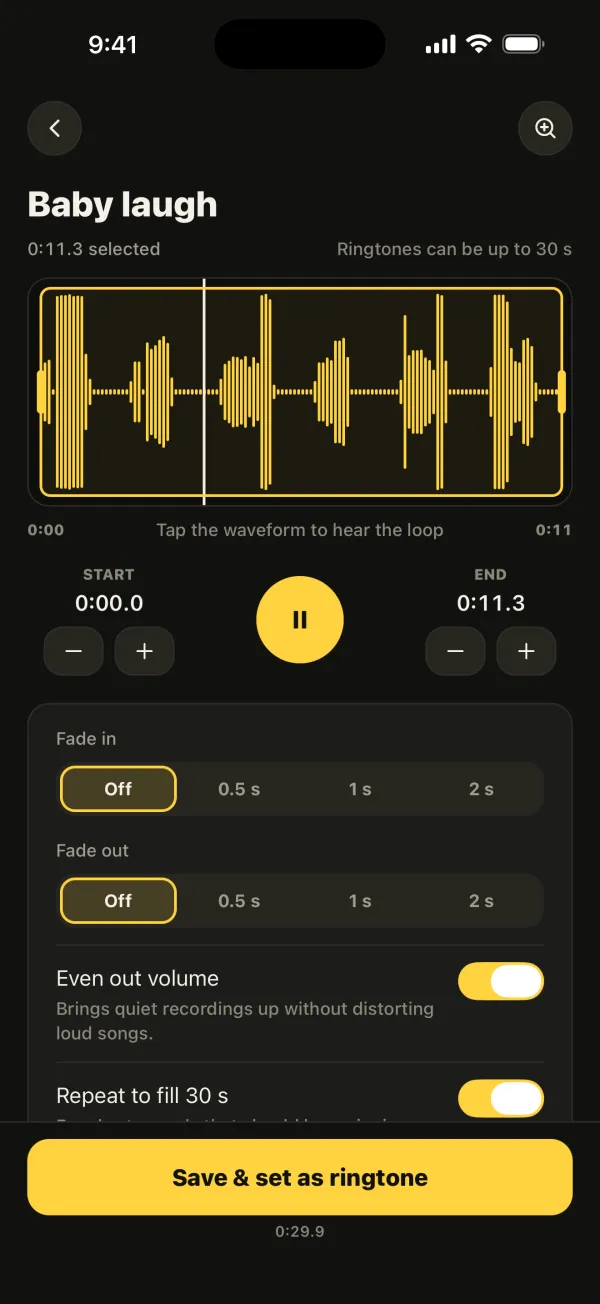
- 2The video's sound opens on a waveform. Best part suggests the most energetic, most recognizable stretch, or you drag the yellow frame yourself, zoom in and nudge the start and end by 0.1 second.
- 3Add a fade in or out. Even out volume is on by default, and Repeat to fill 30 s loops a short sound.
- 4Tap Save & set as ringtone. On iOS 26 the share sheet opens with “Use as Ringtone”; on iOS 17–18 Ringsy walks you through the GarageBand export and also gives you an .m4r file.
The video is only read for its sound and stays unchanged, and nothing is uploaded: the sound is decoded, trimmed and rendered on the iPhone.
Quick facts
- Maximum ringtone length on iPhone: 30 seconds (Ringsy caps the selection at 29.9).
- iOS 26 and later: ringtones are set from the share sheet with “Use as Ringtone”, no computer needed.
- iOS 17 and 18: GarageBand exports a ringtone on the phone; a computer is optional.
- Songs from Apple Music and other streaming services are DRM-protected and can't be made into ringtones by any app, even when you heard them on TikTok.
- The same tone can also be a text tone, an alarm sound or one person's ringtone.
Frequently asked questions
- Why is there no Save video button on some TikTok videos?
- The creator has turned off downloads for that video, or for their account. You can screen-record the video from Control Center instead; the recording keeps the sound. Respect the creator's choice and keep the result for your own phone.
- Will the TikTok watermark matter?
- No. The watermark is part of the picture, and a ringtone is sound only. Just trim off the TikTok logo clip at the end of a saved video, since it has its own sound.
- Can I make a TikTok sound the ringtone for just one person?
- Yes. Once the tone is in Settings › Sounds & Haptics › Ringtone, open Contacts, choose the person, tap Edit › Ringtone and pick it. Everyone else keeps your default ringtone.
- Does Ringsy upload my TikTok video?
- No. Ringsy reads only the video you pick, takes its sound and does all the trimming and rendering on your iPhone. The video in Photos is not changed.