How to turn a video’s sound into an iPhone ringtone
Published October 1, 2026 · 6 min read
Some of the best ringtones aren’t songs at all: your kid laughing, a friend’s catchphrase, the sound of a place you visited. Those usually live inside a video in your Photos library, and iPhone can’t set a video as a ringtone directly.
The fix is to pull the audio out of the video first, then turn that audio into a ringtone. Both parts can be done on the iPhone with free Apple apps.
Before you start: what you can and can’t use
- Videos you recorded yourself, or that someone sent you, are the easiest: save them to Photos first.
- Clips from social apps can be used only if the app lets you save the video to your phone. Respect the creator’s rights, and remember that music inside a clip may be copyrighted — fine for your own phone, not for sharing as a ringtone pack.
- Streaming audio and DRM-protected content cannot be extracted by any app.
Step 1: extract the audio with the Shortcuts app
Shortcuts is Apple’s free automation app, already installed on most iPhones (re-download it from the App Store if you removed it). You build this shortcut once, then reuse it from the share sheet for any video.
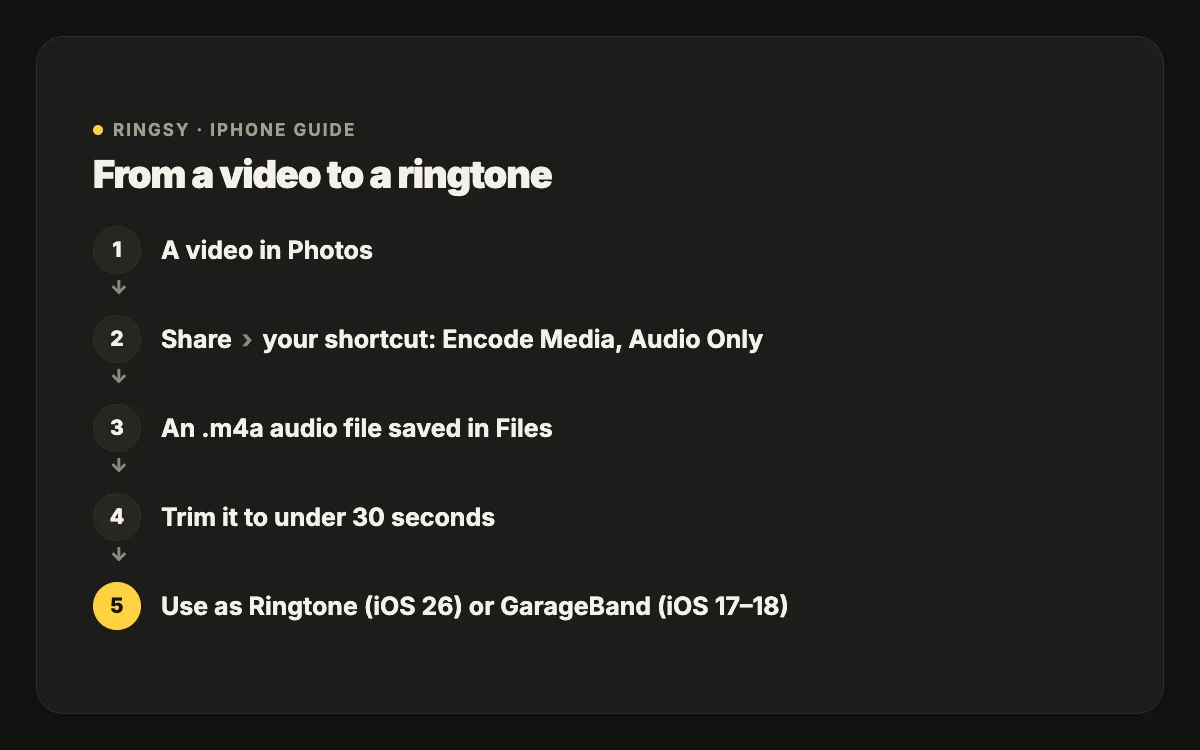
- 1Open Shortcuts, go to the Shortcuts tab and tap + to create a new shortcut.
- 2Open the shortcut’s details (the ⓘ button) and turn on Show in Share Sheet. Back in the editor, tap the input line at the top and leave only Media selected.
- 3Tap Add Action, search for “Encode Media” and add it. It uses the Shortcut Input automatically.
- 4Tap the arrow on the Encode Media action to expand its options and turn on Audio Only.
- 5Add a second action: search for “Save File” and add it. Leave “Ask Where to Save” on so you can choose a folder.
- 6Name the shortcut something like “Video to Audio” and tap Done.
Now open the video in Photos, tap Share, scroll down and tap Video to Audio. Choose a folder in Files (for example On My iPhone) and tap Open. After a few seconds you have an .m4a audio file with the video’s soundtrack. The original video is not changed.
Step 2: trim it to the moment you want
A video’s sound usually has silence, wind noise or chatter around the part you care about. An iPhone ringtone also has to be under 30 seconds. So trim before you set it:
- Note the time in the video where your moment starts and ends — Photos shows the playhead time as you scrub.
- Trim the audio in GarageBand (drag the clip’s edges on the track) or in any editor that opens files from Files.
- Keep the moment at the very start. Ringtones play from second zero, and most calls are answered within a few rings.
- Very short sounds (a two-second laugh) feel abrupt as a ringtone. Repeating them a few times to fill 10–30 seconds works better.
Step 3: set it as your ringtone
On iOS 26 or later: in Files, touch and hold the trimmed audio file, tap Share, then “Use as Ringtone” (scroll the row of actions if you don’t see it).
On iOS 17 or 18: import the file into GarageBand, then from My Songs touch and hold the project, tap Share › Ringtone › Export, and choose “Use sound as… Standard Ringtone”. Our guide to making a ringtone without a computer covers those GarageBand steps in detail.
You’ll find it afterwards in Settings › Sounds & Haptics › Ringtone, at the top of the list.
Make it sound good on a phone speaker
Video audio is often recorded quietly and from a distance, so it can disappear on a small speaker in a pocket. A few things help:
- Raise or normalise the volume so the loudest part sits just below clipping.
- Add a short fade-in (half a second) if the clip starts with a click, and a fade-out so it doesn’t stop mid-word before looping.
- Pick a part where one sound dominates. Crowd noise and music under speech turn into mush on a phone speaker.
- Test it: call yourself from another phone, or play it with the iPhone in a bag, before you rely on it.
Where Ringsy helps
The Shortcuts + GarageBand route is free and works well, but it is three apps and several hand-offs for one ringtone.
Ringsy does it in one place: tap Video, pick a clip from Photos, and its soundtrack opens on a waveform ready to trim. You can zoom in to land on the exact start, let short sounds repeat to fill 30 seconds, add fades, and even out a quiet recording before setting it. The video is read only to take its sound, stays untouched, and nothing is uploaded.