How to cut or trim an audio file on iPhone
Published October 1, 2026 · 6 min read
iPhone has three free ways to cut audio: Voice Memos trims its own recordings, the Shortcuts app’s Trim Media action trims any audio file from Files, and GarageBand trims anything and can export it as a ringtone. None needs a computer.
Which one to use depends on where the sound is and what you want to do with it. If it is going to be a ringtone, the result has to be shorter than 30 seconds and start right on the part you want.
Which method should I use?
- The sound is a Voice Memos recording: trim it in Voice Memos.
- The sound is an MP3, M4A or WAV in Files: use the Trim Media shortcut below.
- You want a ringtone on iOS 17 or 18, or you need fades and more control: GarageBand.
- The sound is inside a video: extract the audio first (our guide to turning a video’s sound into a ringtone shows a Shortcuts recipe), then trim.
How do I trim a recording in Voice Memos?
- 1Open Voice Memos and tap the recording.
- 2Tap the ⋯ button, then Edit Recording.
- 3Tap the trim icon (a square with handles) at the top right.
- 4Drag the yellow handles at each end of the waveform to the start and end you want.
- 5Tap Trim to keep the selection (or Delete to remove it instead), then Save and Done.
Voice Memos trims in place, so duplicate the memo first (⋯ › Duplicate) if you want to keep the full recording.
How do I trim an MP3 with Shortcuts?
Shortcuts comes with iOS and has a Trim Media action that shows a simple trimming screen for audio or video. Build the shortcut once and reuse it from the share sheet.
- 1Open Shortcuts, tap + to make a new shortcut and name it “Trim Audio”.
- 2Open its details (ⓘ) and turn on Show in Share Sheet; set the input to Media and Files.
- 3Add the action Trim Media. It takes the shortcut input automatically.
- 4Add Save File after it and leave Ask Where to Save on.
- 5In Files, touch and hold your audio file, tap Share and choose Trim Audio. Drag the handles, tap Save, then pick a folder.
The original file is left alone; you get a new, trimmed copy.
How do I trim audio in GarageBand?
- 1Open GarageBand, create an Audio Recorder project and switch to the Tracks view.
- 2Tap the Loop Browser, open Files, and drag your file to the start of the track.
- 3Drag the left and right edges of the clip to trim it. Pinch to zoom the timeline for precision.
- 4Drag the trimmed clip back to the very start, so there is no silence before it.
- 5Go to My Songs, touch and hold the project and choose Share › Ringtone, or Share › Song to save an audio file.
How long should a ringtone be?
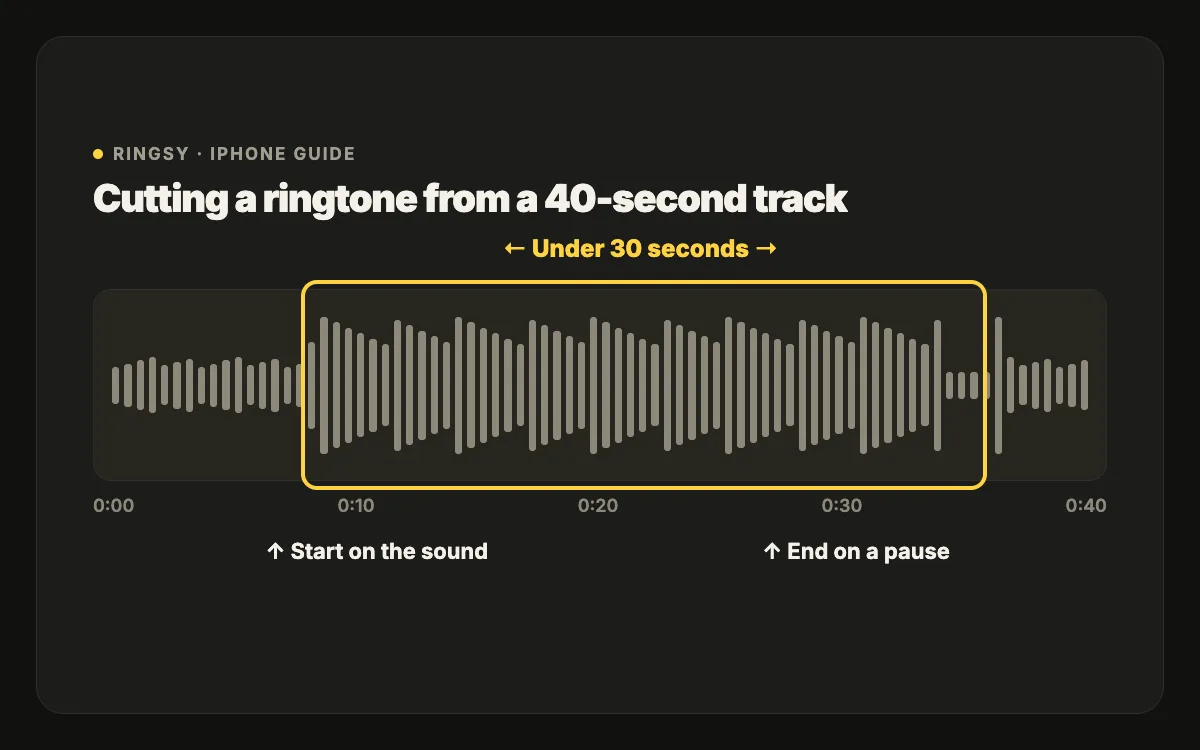
Under 30 seconds — iOS won’t accept a longer ringtone. In practice 15–30 seconds is plenty, because a call rings for about that long before going to voicemail. Text tones and alerts should be much shorter, one to three seconds.
Two trimming habits make the result sound better:
- Start on the sound, not before it. A ringtone always plays from second zero, so a breath of silence at the start delays every ring.
- End on a natural pause. A ringtone loops, and a cut in the middle of a word or beat makes the repeat sound broken. A short fade-out hides the seam.
Where Ringsy helps
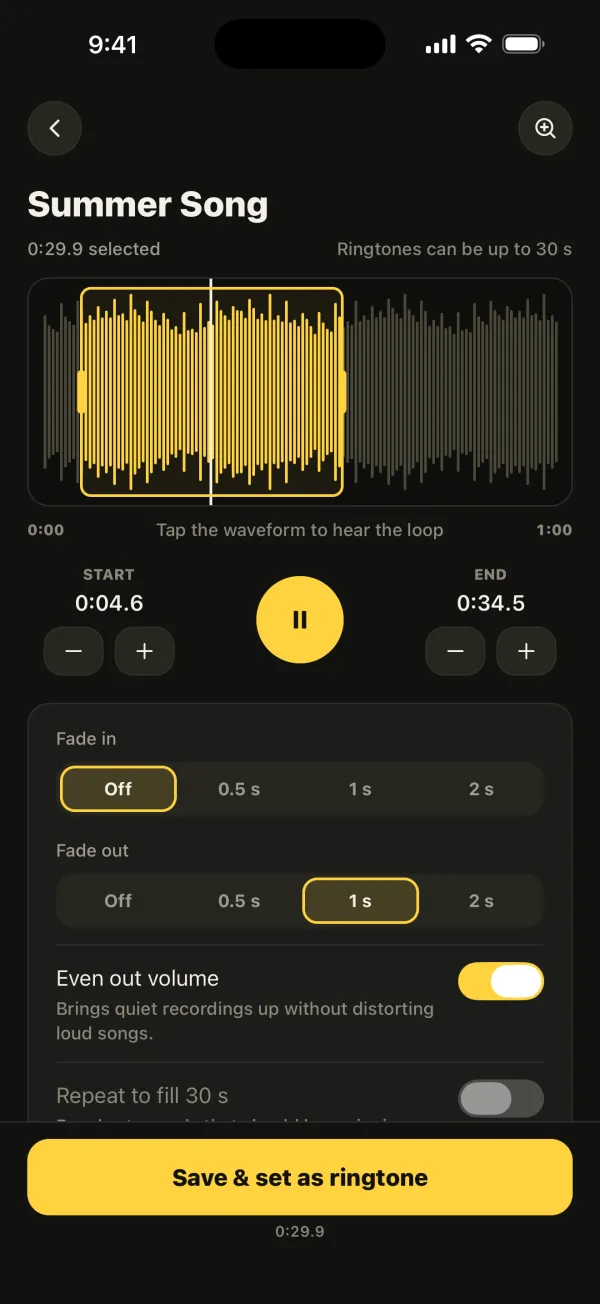
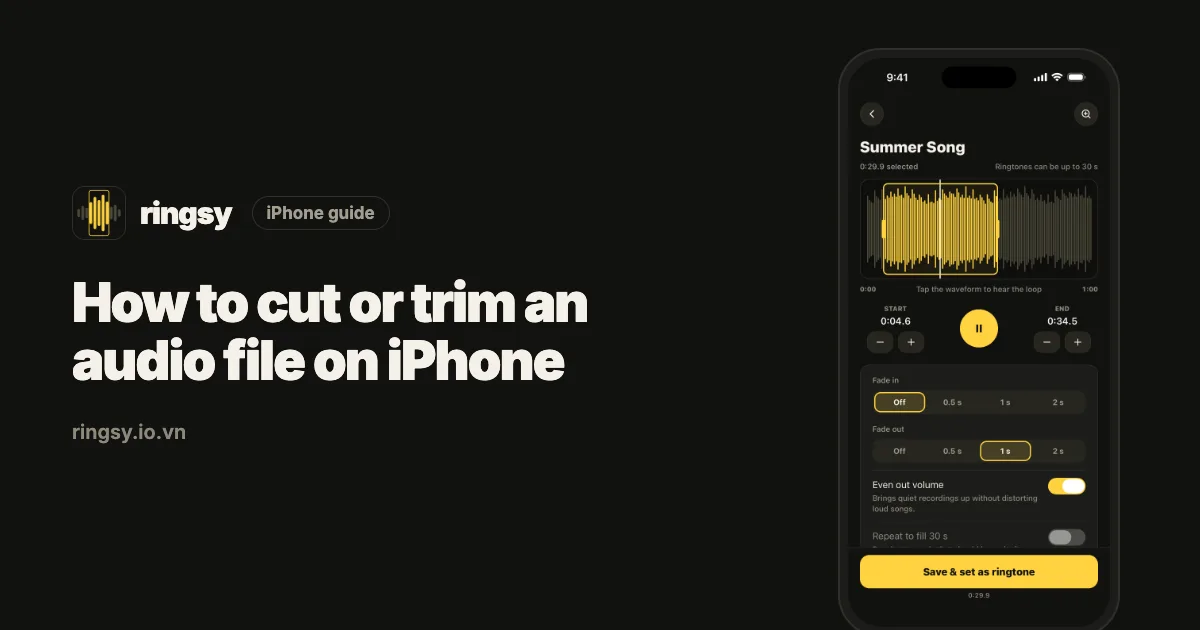
The free tools above all trim, but none of them is built around ringtones. Ringsy is: open a file, a video’s sound or a recording, and it appears on a waveform with a selection that can’t go past 29.9 seconds. Zoom in, nudge the start and end by a tenth of a second, tap to hear the loop as the phone will repeat it, and let Best part suggest the most recognisable stretch of a song. Add a fade in or out (0.5, 1 or 2 seconds) and keep Even out volume on, then save it as a ringtone or to Files. Everything is processed on the iPhone.