Can you use a voicemail as an iPhone ringtone? How to save it and trim it
Published November 9, 2026 · 6 min read
Yes, in most cases. If your carrier gives you visual voicemail, you can open a message in the Phone app, share it as an audio file, save it to Files, cut it to under 30 seconds and set it as a ringtone. The one thing that stops it is a phone without that Share button, which we cover below.
People do this to keep a voice they miss, a child’s message or a funny greeting. The steps are the same for any of them. Menu names change a little between iOS versions, so check the screen in front of you.
1. Save the voicemail out of the Phone app
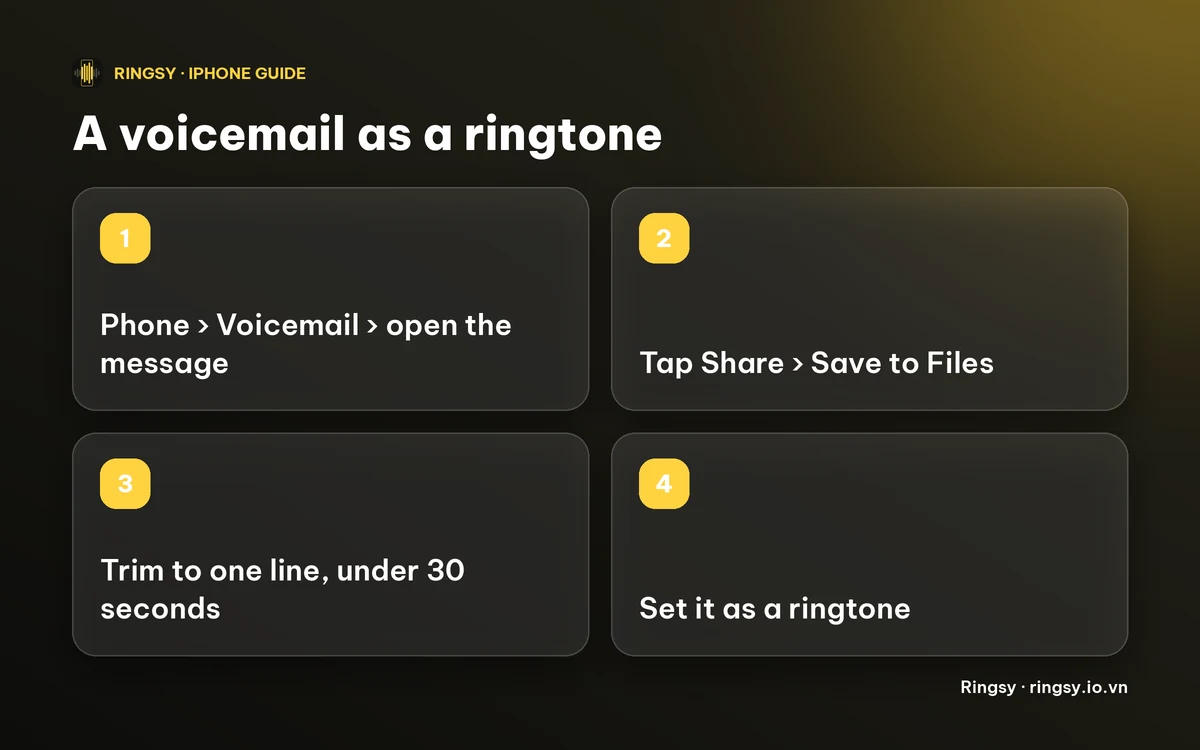
- 1Open Phone and tap Voicemail.
- 2Tap the message to open it. Its controls appear under it, including a Share button (a square with an arrow).
- 3Tap Share and choose Save to Files, then pick a folder such as On My iPhone. You can also send it to Voice Memos if it is listed.
Only the message you opened is saved. The voicemail stays in the Phone app until you delete it, and iPhone keeps deleted voicemails for a while under Deleted Messages, so save it before it disappears.
2. If there is no Share button
- Visual voicemail depends on your carrier and plan. If Voicemail in the Phone app only shows a ‘Call Voicemail’ button and no list of messages, there is nothing to share. Ask your carrier whether visual voicemail is available.
- Update iOS and reopen the Phone app. Open the message itself, because the controls only show once it is expanded.
- As a last resort you can record it: play the voicemail on speaker in a quiet room and record with Voice Memos. The quality is lower, so use it only when nothing else works.
3. Cut it to the part you want
A ringtone has to be shorter than 30 seconds, and a voicemail is often longer and starts with a greeting or a pause. Keep the one line you want, such as ‘Hi Mum, it’s me!’, and cut the rest.
- Start right on the first word. A ringtone always plays from the beginning, so silence at the start feels like a delay.
- A short line works better when it repeats. A three-second phrase played once leaves a long gap before the phone rings again.
- Remove coughs, background noise and other people’s voices, unless you want them.
Our guide to the 30-second limit explains what happens to a longer file.
4. Set it as a ringtone
- iOS 26 and later: share a trimmed audio file under 30 seconds and tap Use as Ringtone in the share sheet if it appears.
- iOS 17 and 18: import the file into Apple’s free GarageBand and export it as a ringtone. Our voice memo guide lists every step; a voicemail file takes the same route.
- To make it ring only for one person, add it as that contact’s ringtone in Contacts › Edit › Ringtone. Our guide to a ringtone for one contact has the steps.
5. A voicemail is quieter than a ringtone
Voicemail audio is usually recorded for a phone call, so it is thin and quiet next to a stock ringtone. Raise the level before you export and check the result on the phone’s own speaker. Our guide to a quiet ringtone covers the settings that can also lower it.
6. Privacy and respect
A voicemail is a recording of someone’s voice. Keeping one on your own phone as a keepsake is a personal choice, but a ringtone plays out loud in public, and a message may include private things. Cut it to a harmless line, and if the voice belongs to someone who is alive, ask them first. Do not share a voicemail you received with other people without asking.
Where Ringsy helps
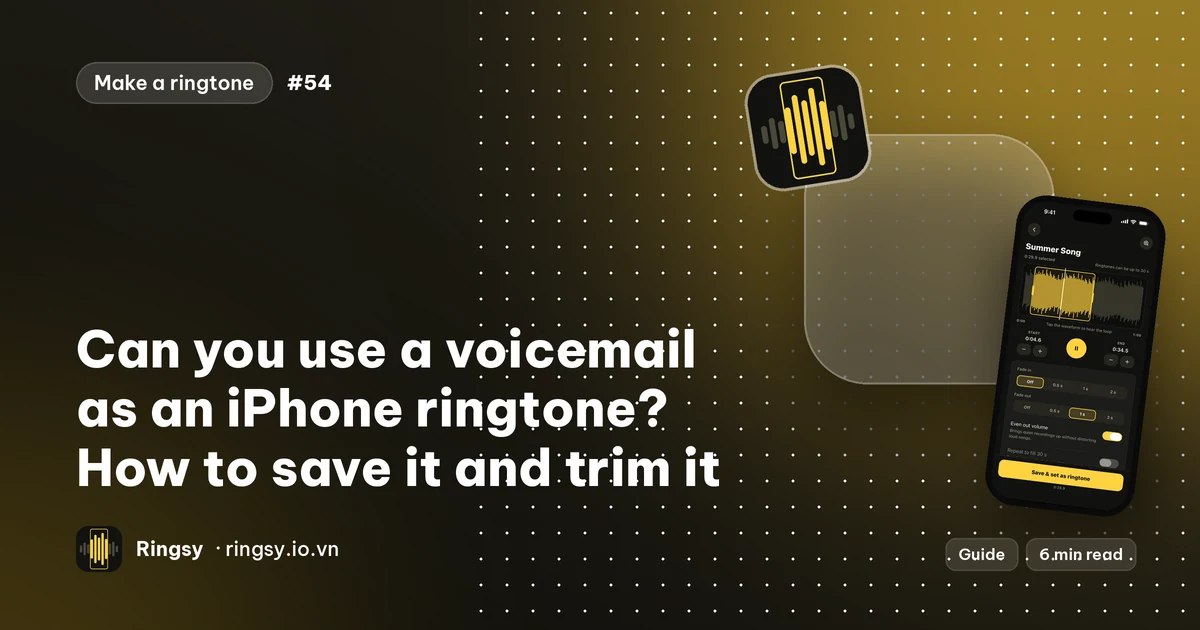
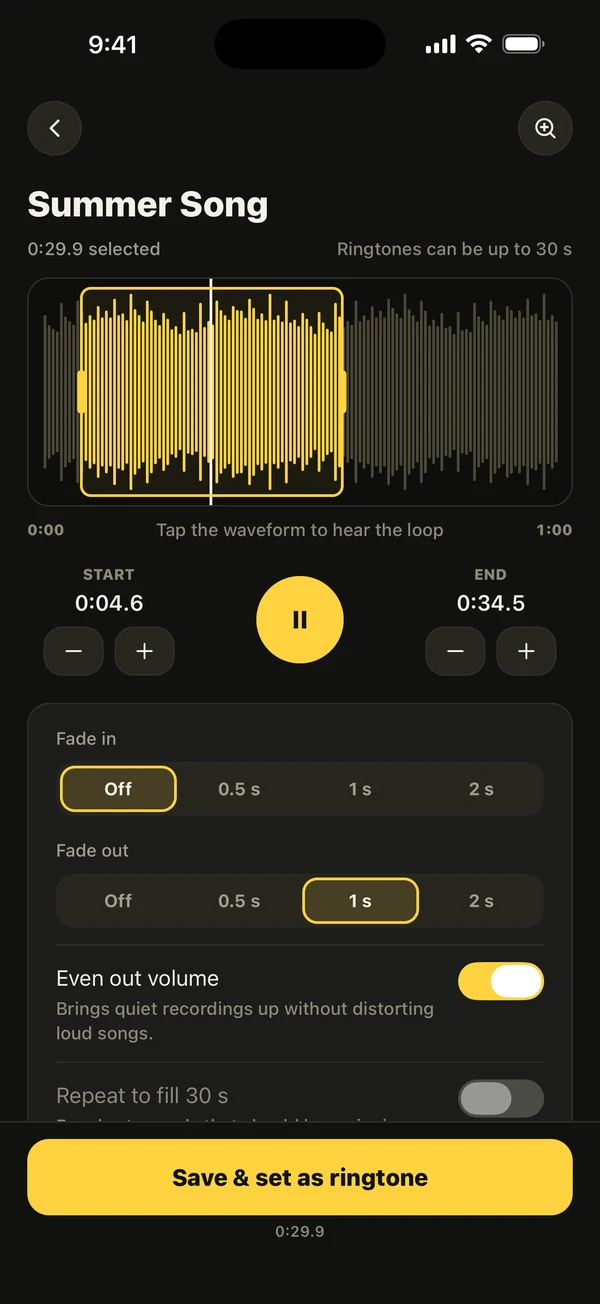
Ringsy, our ringtone maker for iPhone, handles steps 3 to 5. Choose the saved file with Files, or share an audio file to Ringsy from a share sheet that lists it, and it opens on a waveform with a yellow selection frame. Drag it onto the line you want, nudge the start by a tenth of a second, and keep Even out volume on, which is its default, to lift a quiet voice. The selection stops at 29.9 seconds. ‘Hear it as a call’ plays it full screen, repeating, before you set it.
On iOS 26 and later, Save & set as ringtone opens the share sheet with Use as Ringtone; on iOS 17 and 18 Ringsy guides you through GarageBand. Sounds are processed on the iPhone and never uploaded. Two exports are free; Ringsy Unlimited is a one-time purchase with no subscription.
Quick facts
- Phone › Voicemail › open the message › Share › Save to Files.
- No list of messages means no visual voicemail, and nothing to share.
- Keep one clear line under 30 seconds, starting on the first word.
- Raise the volume and test on the phone’s speaker.
- Be thoughtful about whose voice it is and where it will ring.
Frequently asked questions
- How do I save a voicemail on iPhone as an audio file?
- Open the message in Phone › Voicemail, tap the Share button and choose Save to Files. If there is no Share button, your carrier may not offer visual voicemail.
- Why is there no Share button on my voicemail?
- Visual voicemail depends on your carrier. If the Voicemail tab only calls your voicemail box, there are no saved messages to share. Open the message itself too, because its controls show once it is expanded.
- Can I use a long voicemail as a ringtone?
- Only after cutting it to under 30 seconds. Keep one clear line, starting on the first word.
- Does Ringsy save my voicemail anywhere?
- No. Ringsy edits the file on your iPhone and does not upload it. Two exports are free, then Ringsy Unlimited is a one-time purchase.