How long can an iPhone ringtone be? The 30-second limit explained
Published October 21, 2026 · 5 min read

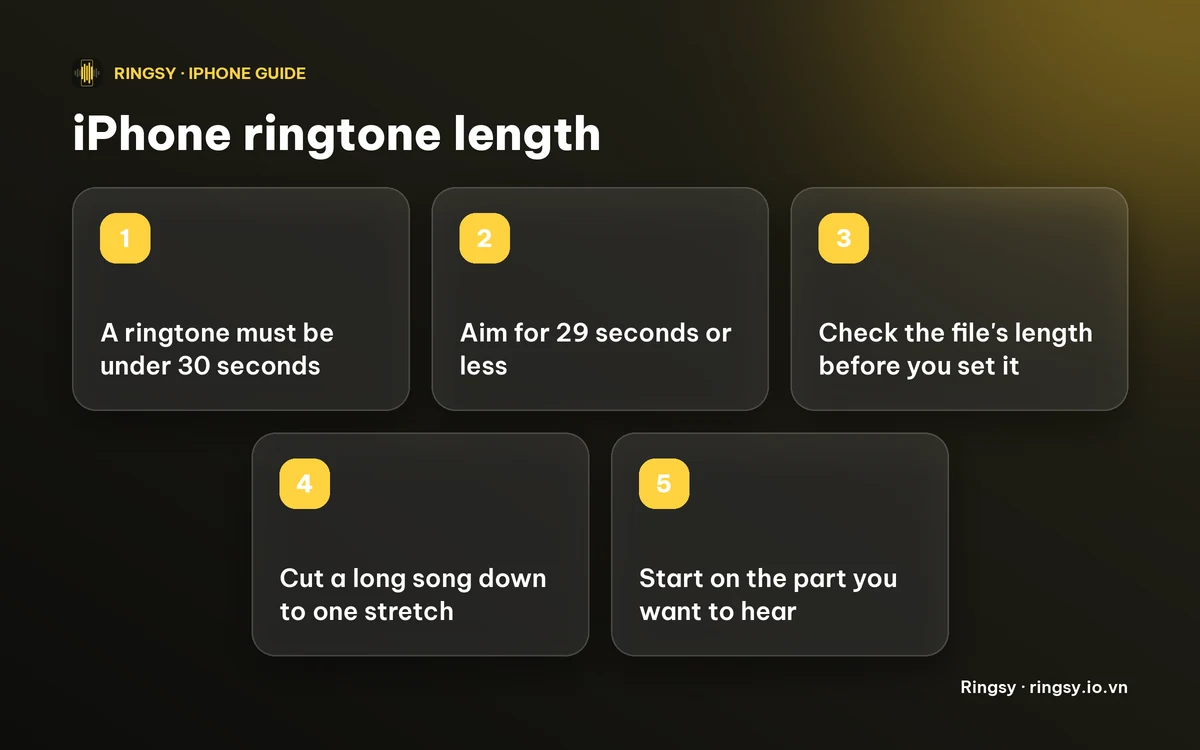
A custom iPhone ringtone has to be shorter than 30 seconds. A file of 30 seconds or more is usually refused or simply never shows up in the ringtone list, often without an error message, so the safe target is 29 seconds or less.
This guide explains the limit, what to do with a song that is minutes long, how to check a file’s length before you try, and why you rarely need all 30 seconds anyway.
What is the maximum length of an iPhone ringtone?
Under 30 seconds. That is the limit both for the “Use as Ringtone” action in iOS 26 and for ringtones exported from GarageBand, which Apple documents as 30 seconds at most. The phone plays the tone from the start and repeats it for as long as the call keeps ringing.
You may read that a ringtone can be up to 40 seconds. That figure comes from older computer-based methods and some old forum threads, and it is not a safe number: aim below 30 seconds and the question never comes up.
What happens if my file is longer?
Depending on the route, one of three things:
- The ringtone never appears in Settings › Sounds & Haptics › Ringtone, even though the export seemed to work.
- “Use as Ringtone” is missing or does nothing for that file.
- GarageBand refuses to export it, or cuts it, depending on the version.
If a ringtone you made isn’t listed, length is the first thing to check. Our guide to a custom ringtone not showing up goes through the other causes: copy protection, format and export type.
How do I check how long a file is?
- 1In the Files app, touch and hold the audio file and tap Get Info.
- 2Look for the duration, or play the file and read the time shown at the end of the player.
- 3For a recording in Voice Memos, the length is shown beside the recording in the list.
A song bought or downloaded as an audio file is usually three to four minutes, so it always needs cutting. A voice message or a short effect is often already short enough.
How do I get a long song under 30 seconds?
You cut one stretch out of it and keep that. The usual free routes are Voice Memos for your own recordings, a Shortcuts action for any file, or GarageBand, and our guide to trimming audio on iPhone walks through each of them.
Whichever you use, a few choices decide whether the result sounds good:
- Start on the part you want to hear. A ringtone plays from its first second, so a song’s quiet intro makes the phone seem silent for several seconds.
- End on a natural pause, or add a short fade, so the repeat doesn’t begin in the middle of a note.
- Stay under the limit with a little room: 29 seconds or less.
Do I actually need 30 seconds?
Usually not. A call rings for roughly 20 to 30 seconds before your carrier sends it to voicemail, and most calls are answered long before that, so the first ten seconds are the ones you hear. A strong ten to fifteen seconds that start on the hook is often better than a full half minute. If a short sound seems to stop early, repeat it to fill the file; our guide to making your iPhone ring longer explains why the carrier, not the ringtone, decides how long the phone rings.
Where Ringsy helps
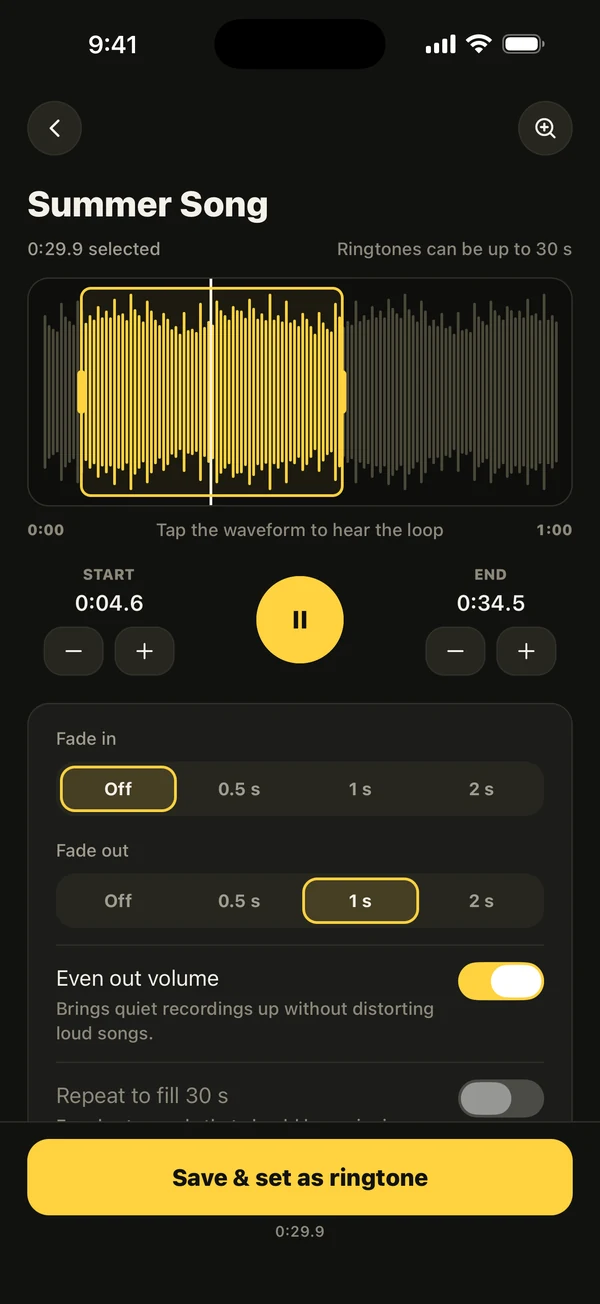
Ringsy, our ringtone maker for iPhone, builds the limit into the editor. Open a song from Files, a video’s sound or a recording and the sound appears on a waveform with a yellow selection frame that can’t go past 29.9 seconds, with a dashed guide where the limit falls. Drag the frame to the part you want, zoom in and nudge the start and end by a tenth of a second, and tap to hear the loop.
Best part can suggest the most recognisable stretch of a song, fades of 0.5, 1 or 2 seconds soften the cut, and “Hear it as a call” lets you listen to the finished tone ringing full screen before you set it. Tap Save & set as ringtone to finish: Use as Ringtone on iOS 26 and later, a guided GarageBand route on iOS 17 and 18.
Sounds are edited on your iPhone and are not uploaded. The first two exported ringtones are free; after that Ringsy Unlimited is a one-time purchase with no subscription.
Quick facts
- A custom iPhone ringtone has to be shorter than 30 seconds; aim for 29 or less.
- A longer file is usually refused or never listed, often without an error.
- The tone starts from its first second and repeats while the phone rings.
- Ten to fifteen seconds that start on the hook are usually enough.
- Ringsy’s selection stops at 29.9 seconds, so an exported tone is always within the limit.
Frequently asked questions
- How long can an iPhone ringtone be?
- Shorter than 30 seconds. Aim for 29 seconds or less, since a file of 30 seconds or longer is usually refused or never listed as a ringtone.
- Can an iPhone ringtone be 40 seconds?
- Some older methods are said to have allowed it, but it is not reliable on current iOS. Staying under 30 seconds works on every route.
- Why is my custom ringtone not showing up?
- The most common cause is a file that is 30 seconds or longer. Trim it, set it again, then reopen Settings › Sounds & Haptics › Ringtone. Copy-protected files and the wrong export type are other causes.
- How do I cut a song down to 30 seconds?
- Pick one stretch, ideally starting on the part you want to hear, and trim to 29 seconds or less with Voice Memos, a Shortcuts action, GarageBand or an editor such as Ringsy, whose selection stops at 29.9 seconds.