How to use a WhatsApp voice message as an iPhone ringtone
Published October 18, 2026 · 5 min read
WhatsApp will not let you set a voice message as a ringtone from inside the app, but you can take the audio out. Share the voice message from WhatsApp to an app that can trim it, cut it to under 30 seconds, and set it as your iPhone ringtone, for example with Use as Ringtone on iOS 26 or later.
This guide covers the steps, why a voice message sometimes will not open, and what a ringtone made this way does and does not change.
Can you set a WhatsApp voice message as a ringtone?
Yes, as a sound. A voice message is an audio file, and an iPhone ringtone is a short audio file. What you cannot do is pick it in WhatsApp’s own settings: the app has no option to turn a voice message into a ringtone.
So the job is: share the voice message out of WhatsApp, trim it, and set it as the iPhone’s ringtone (or as a contact’s ringtone).
Step 1: share the voice message out of WhatsApp
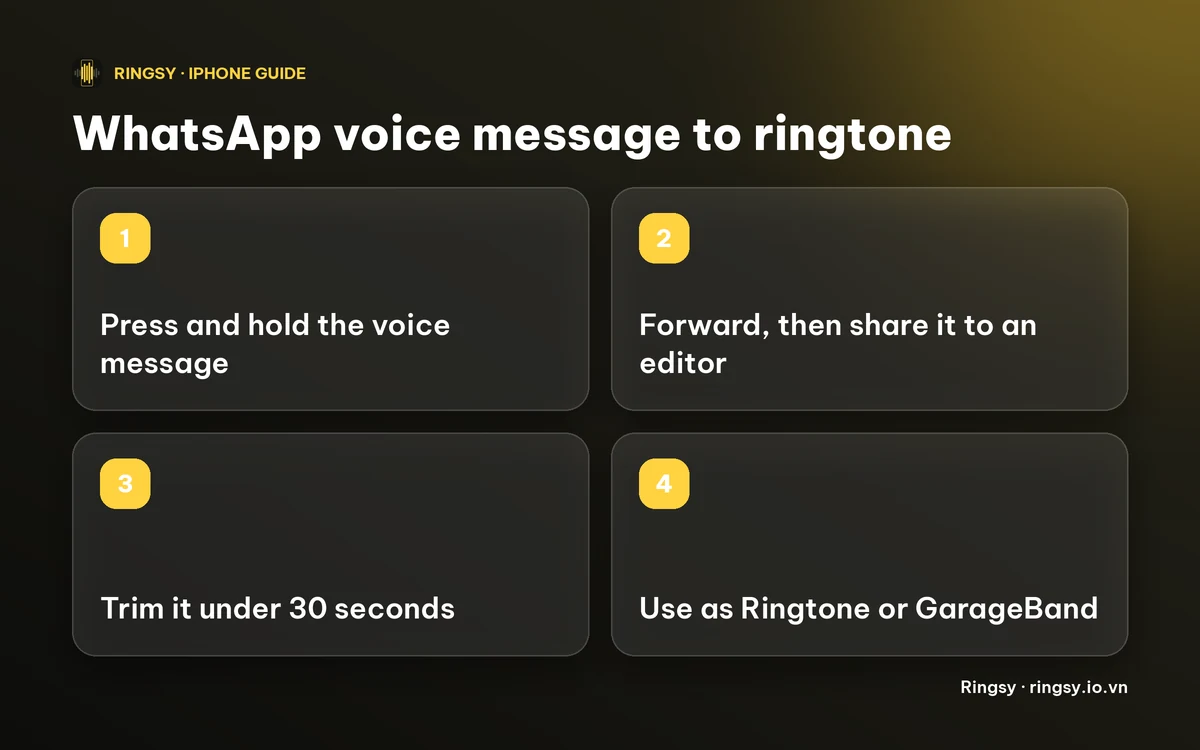
- 1Open the chat and press and hold the voice message.
- 2Choose Forward, then tap the share icon (the square with an arrow) to open the iPhone’s share sheet. Menu names and icons differ between WhatsApp versions, so look for the share sheet rather than a fixed label.
- 3In the share sheet, pick an app that can edit audio, or choose Save to Files to keep a copy on your iPhone first.
Only the voice message you chose is shared, not the whole chat. Before you use a message from another person, remember it is their voice: ask first if it is not yours.
Step 2: what if the file will not open?
WhatsApp usually stores voice messages in a format called Opus, not in the MP3 or M4A files that most editors expect. Some apps open it and some do not, and it can depend on your iOS version, so this step is a matter of trying.
If an app says the file cannot be opened, try one of these:
- Ask the sender to send the sound again as an audio file or a video, which usually arrives as MP3, M4A or MP4.
- Play the message aloud and record it again with a Voice Memos app on another device, then send that recording to your iPhone.
- Use a different app to open it. Not every app reads the same formats.
Step 3: trim it to under 30 seconds
An iPhone ringtone has to be shorter than 30 seconds. Most voice messages are shorter already, but a long one needs cutting. Remember that a ringtone starts from second zero and repeats while the phone rings, so keep the part you want to hear first: a name, a greeting or a laugh.
A very short message can sound odd on repeat. Leave a little silence at the end so the loop does not run words together.
Step 4: set it as your ringtone
- iOS 26 or later: share the trimmed file and tap “Use as Ringtone”. It then shows in Settings › Sounds & Haptics › Ringtone.
- iOS 17 or 18: export it through Apple’s free GarageBand app with Share › Ringtone. Our guide to making a ringtone without a computer has the steps.
To use it for one person only, open that contact, tap Edit, then Ringtone, and pick the new tone. Menu names can differ slightly between iOS versions.
What it does not change
- WhatsApp’s own call and message sounds. A call that rings through WhatsApp may use your iPhone ringtone or the app’s own sound, depending on the app, and WhatsApp’s notification sounds are chosen inside WhatsApp from its own list.
- Anyone else’s phone. The tone is saved on your iPhone only.
Where Ringsy helps
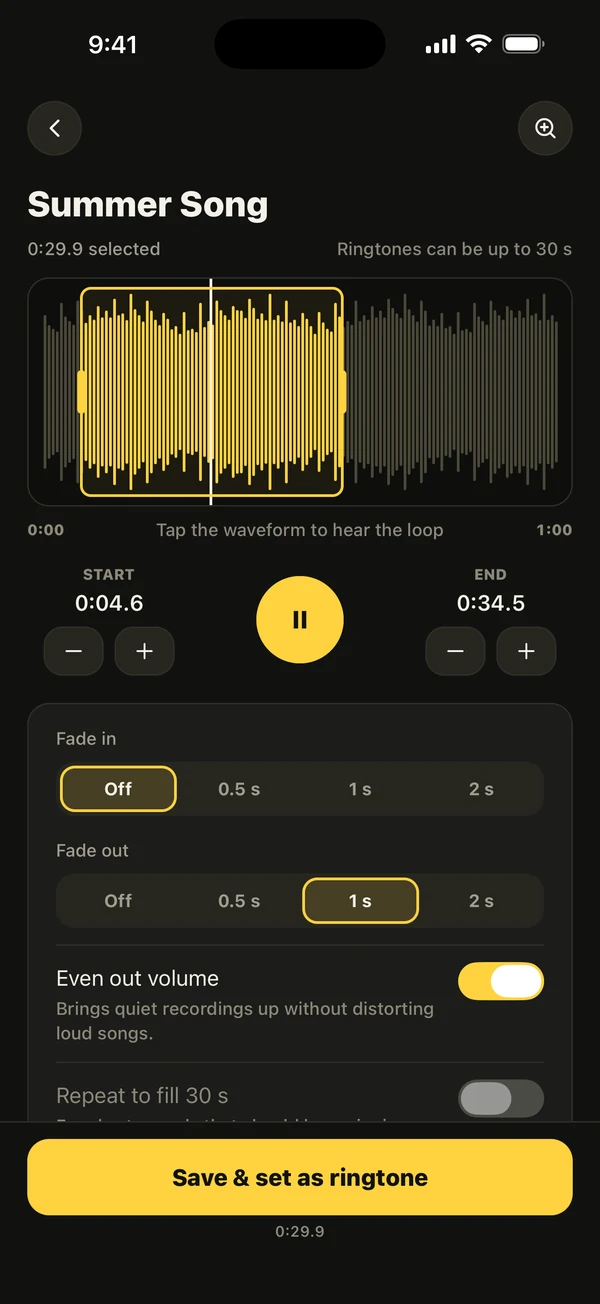
Ringsy, our ringtone maker for iPhone, appears in the share sheet as Share › Ringsy. Share the voice message from WhatsApp and Ringsy opens it straight in the editor, on a waveform with a yellow frame that stops at 29.9 seconds, so it can never be too long. Even out volume is on by default, which helps a quietly recorded message, and fades remove a click at the start or end.
Ringsy reads MP3, M4A, WAV, AIFF and most videos. If WhatsApp hands over a voice message in a format it cannot read, it says so, and the options in step 2 apply. Then tap “Save & set as ringtone”: on iOS 26 and later it opens the share sheet where you tap Use as Ringtone, and on iOS 17 and 18 Ringsy guides you through GarageBand. Sounds are made on your iPhone and nothing is uploaded. Your first two exported tones are free, and after that Ringsy Unlimited is a one-time purchase with no subscription.
Quick facts
- WhatsApp cannot set a voice message as a ringtone itself; share it out of the app.
- WhatsApp voice messages are usually Opus files, which not every app can open.
- A ringtone must be shorter than 30 seconds.
- iOS 26 or later: Use as Ringtone. iOS 17 or 18: GarageBand.
- WhatsApp’s own call and message sounds are not changed.
Frequently asked questions
- Can I set a WhatsApp voice message as my ringtone?
- Not inside WhatsApp, but you can share the voice message out of the app, trim it to under 30 seconds and set it as your iPhone ringtone with Use as Ringtone on iOS 26 or later, or with GarageBand on iOS 17 and 18.
- Why won’t my WhatsApp voice message open in a ringtone app?
- WhatsApp usually stores voice messages as Opus, a format some apps cannot read. Ask the sender to resend it as an audio file or video, or record it again, then try again.
- Does this change my WhatsApp ringtone?
- No. It changes your iPhone ringtone, or a contact’s. WhatsApp’s own sounds are chosen inside WhatsApp from its own list.
- How long can the ringtone be?
- It has to be shorter than 30 seconds. Ringsy stops a selection at 29.9 seconds so a finished tone is always under the limit.