How to use your Android ringtone on an iPhone
Published October 17, 2026 · 6 min read
You cannot copy a ringtone setting from an Android phone to an iPhone, but you can bring the sound itself. Send the audio file to your iPhone, save it in the Files app, trim it to under 30 seconds and add it as a ringtone: on iOS 26 or later with “Use as Ringtone” in the share sheet, on iOS 17 or 18 through GarageBand.
This guide covers each step, what to do when the file will not open, and which Android settings do not come with you.
Can an Android ringtone work on an iPhone?
Yes, as a sound. A ringtone is just a short audio file, and an iPhone can use most common audio files once they are shorter than 30 seconds. What does not transfer is the Android phone’s own setting: your iPhone does not read a ringtone choice from your old phone, and it has no “ringtone folder” you can drop a file into.
So the job has three parts: get the file onto the iPhone, make it fit the iPhone’s rules, and add it to your tones.
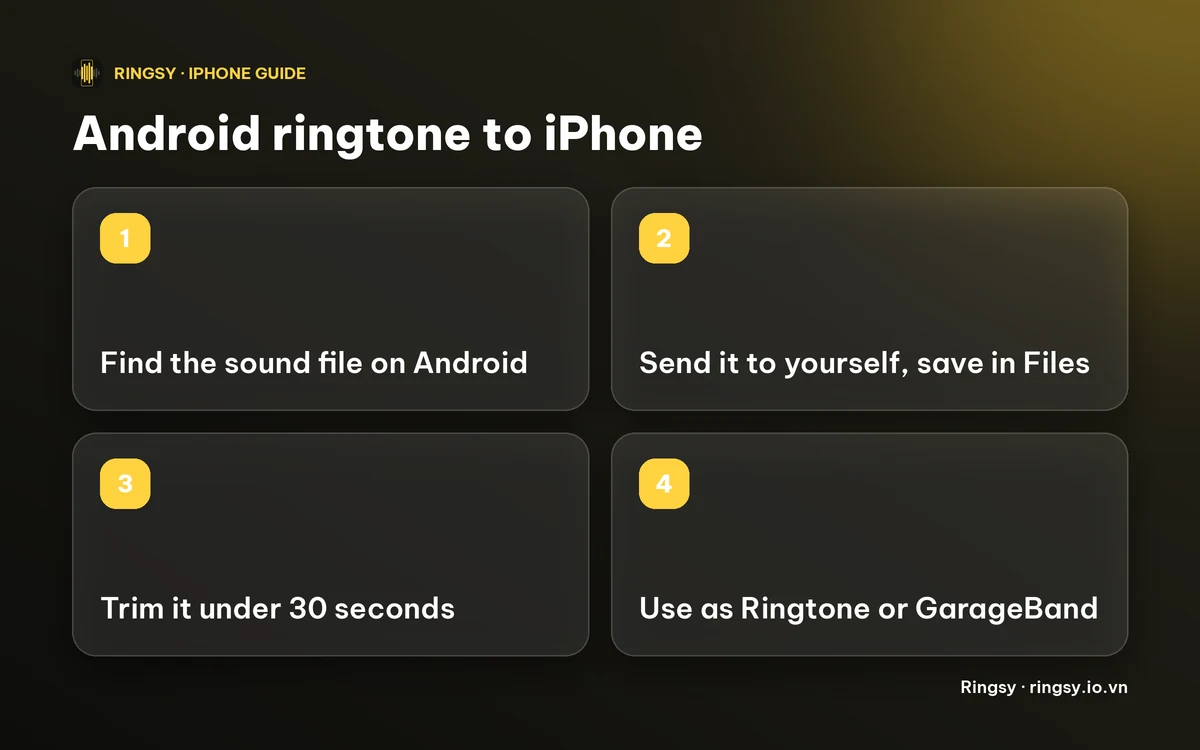
Step 1: find the sound file on your Android phone
Where a ringtone lives depends on the phone maker and the Android version, so treat these as places to look rather than a fixed path.
- A song or clip you added yourself is usually in the Music, Downloads or Ringtones folder, visible in the Files or My Files app.
- A tone that came with the phone is often stored out of sight in the system. If you cannot find it, the easy workaround is to play it and record it with a recorder app, or to pick a similar sound you can find as a file.
- A tone you made from a song: the original song file works just as well, and you can cut the part you want later on the iPhone.
Step 2: get the file onto your iPhone
Any way of sending yourself a file works. Pick the one you already use.
- Email it to yourself and open the attachment on the iPhone.
- Upload it to a cloud drive (Google Drive, Dropbox, OneDrive, iCloud) and open it in that app on the iPhone.
- Send it to yourself in a chat app.
Then save it in the Files app: open the file, tap the share button and choose Save to Files, then pick On My iPhone or iCloud Drive. A file that is only a preview inside an email or chat app cannot be used as a ringtone until it is in Files.
Step 3: check the format and the length
- Format. MP3 and M4A (AAC) files work well. Not every format Android plays is one the iPhone can play: if a file will not play in Files, it is probably in a format iOS does not support, such as OGG. Convert it to MP3 or M4A first, or record it as in step 1.
- Length. An iPhone ringtone has to be shorter than 30 seconds. Android has no such limit, so a ringtone that was a whole song needs cutting down to the best part.
- Protection. A song bought or streamed with copy protection cannot be used, on Android or iPhone alike.
Step 4: trim it and set it as a ringtone
- iOS 26 or later: trim the file to under 30 seconds in an editor that opens files from Files, then share it and tap “Use as Ringtone”. It appears under Settings › Sounds & Haptics › Ringtone.
- iOS 17 or 18: import the file into Apple’s free GarageBand app, trim it, then use Share › Ringtone to export it. Our guide to making a ringtone without a computer has the full GarageBand steps.
- Prefer a Mac or Windows PC? You can convert the file to an .m4r ringtone there and add it with Finder. Our guide on converting MP3 to M4R explains how.
Finally open Settings › Sounds & Haptics › Ringtone and tap your tone. It sits at the top of the list, above Apple’s own tones. Menu names can differ slightly between iOS versions.
What will not carry over from Android?
- Per-contact ringtones. Do not expect them to appear on the iPhone, even if your contacts move across. On iPhone you set them again: open a contact, tap Edit, then Ringtone. Our guide to a ringtone for one contact has the steps.
- Notification sounds of other apps. Apps such as WhatsApp or Messenger keep their own sound settings, so set those inside each app.
- Alarm and text sounds. Set them again in Clock and in Settings › Sounds & Haptics.
Where Ringsy helps
Ringsy, our ringtone maker for iPhone, does the trimming and setting in one place. Tap Files and pick the audio you saved, or use Share › Ringsy from the Files app, and the sound opens on a waveform with a yellow frame that stops at 29.9 seconds, so it can never be too long. Best part can suggest the most recognizable stretch, Even out volume is on by default so a quiet Android clip is loud enough, and fades remove a click at the start or end.
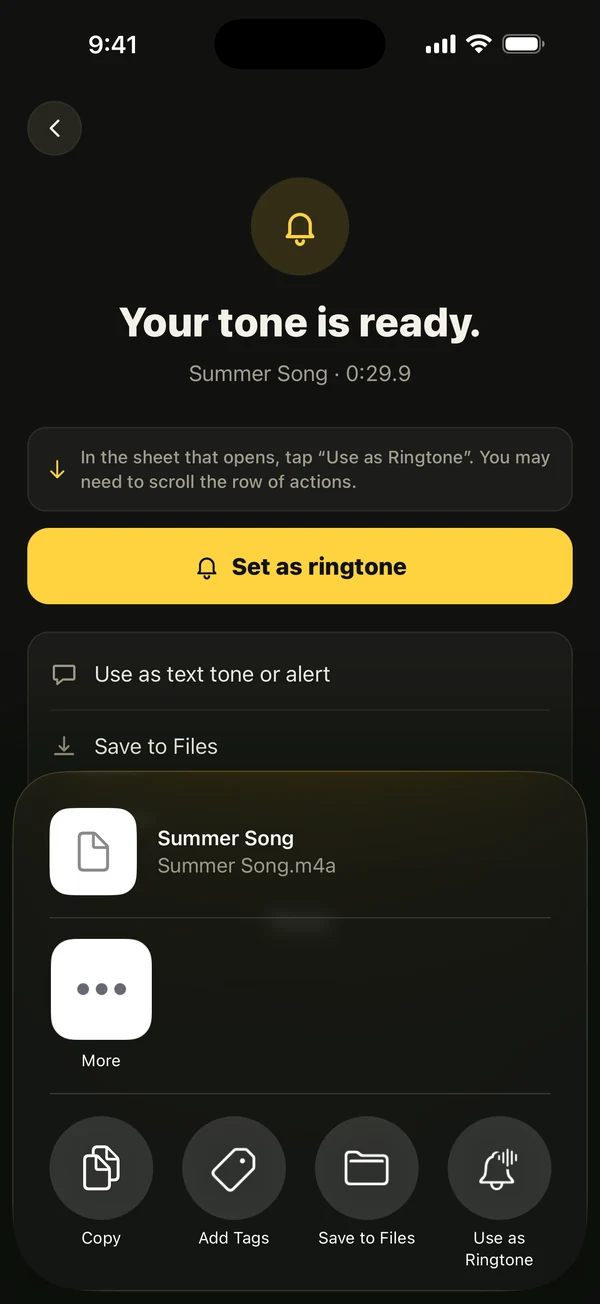
Then “Save & set as ringtone”. On iOS 26 and later it opens the share sheet where you tap Use as Ringtone; on iOS 17 and 18 Ringsy guides you through the GarageBand steps. Sounds are made on your iPhone and nothing is uploaded. Your first two exported tones are free, and after that Ringsy Unlimited is a one-time purchase with no subscription.
Quick facts
- You move the sound file, not the Android ringtone setting.
- Save it in the Files app, then trim it to under 30 seconds.
- iOS 26 or later: Use as Ringtone. iOS 17 or 18: GarageBand.
- Files that will not play are often in an unsupported format such as OGG; convert them to MP3 or M4A.
- Per-contact ringtones have to be set again on the iPhone.
Frequently asked questions
- Can I transfer my Android ringtone to an iPhone?
- You can transfer the sound file, not the setting. Send the audio to your iPhone, save it in Files, trim it to under 30 seconds and add it as a ringtone with Use as Ringtone on iOS 26 or later, or with GarageBand on iOS 17 and 18.
- Why won't my Android ringtone play on my iPhone?
- The file may be in a format iOS cannot play, such as OGG, it may be copy-protected, or it may still be only an attachment and not saved in Files. Convert it to MP3 or M4A and save it in the Files app.
- Do my contacts' ringtones move to the iPhone?
- Do not expect them to. Set a ringtone for each person again in Contacts › Edit › Ringtone.
- How long can an iPhone ringtone be?
- It has to be shorter than 30 seconds. Ringsy stops a selection at 29.9 seconds so a finished tone is always under the limit.