How to delete a custom ringtone from your iPhone
Published October 1, 2026 · 5 min read
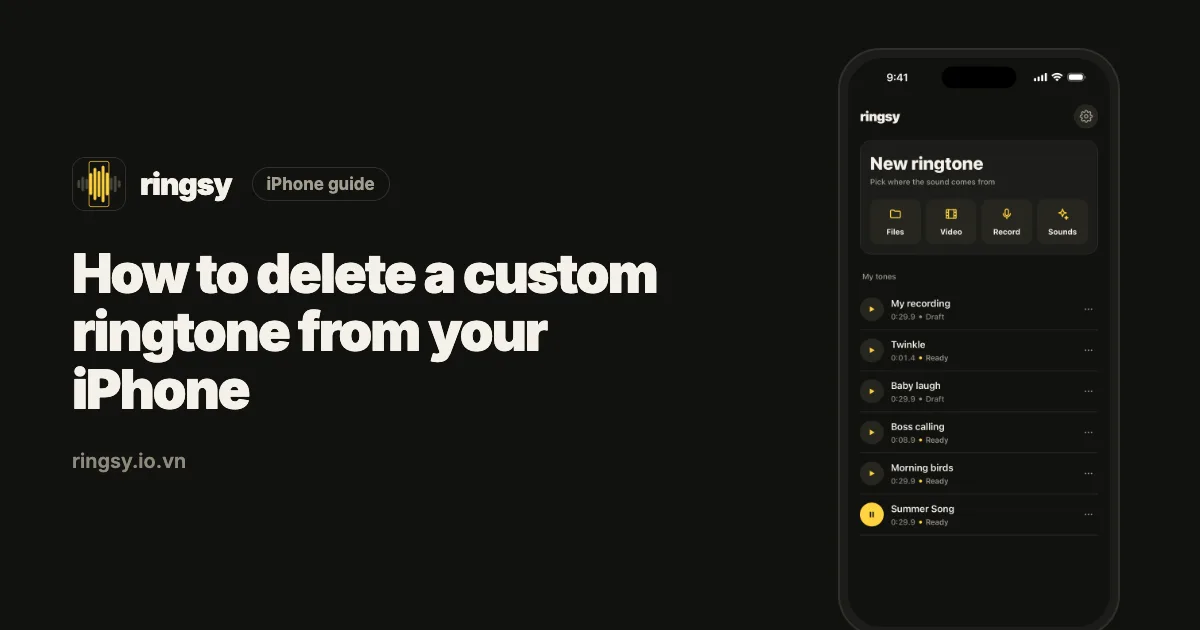
To delete a custom ringtone, open Settings › Sounds & Haptics › Ringtone and swipe left on the tone at the top of the list, then tap Delete. Only tones you added can be removed; Apple’s built-in ringtones stay.
Below: the same steps for text tones, what happens to contacts and alarms that used the deleted sound, and how to clean up when the swipe doesn’t work.
How do I delete a ringtone I added?
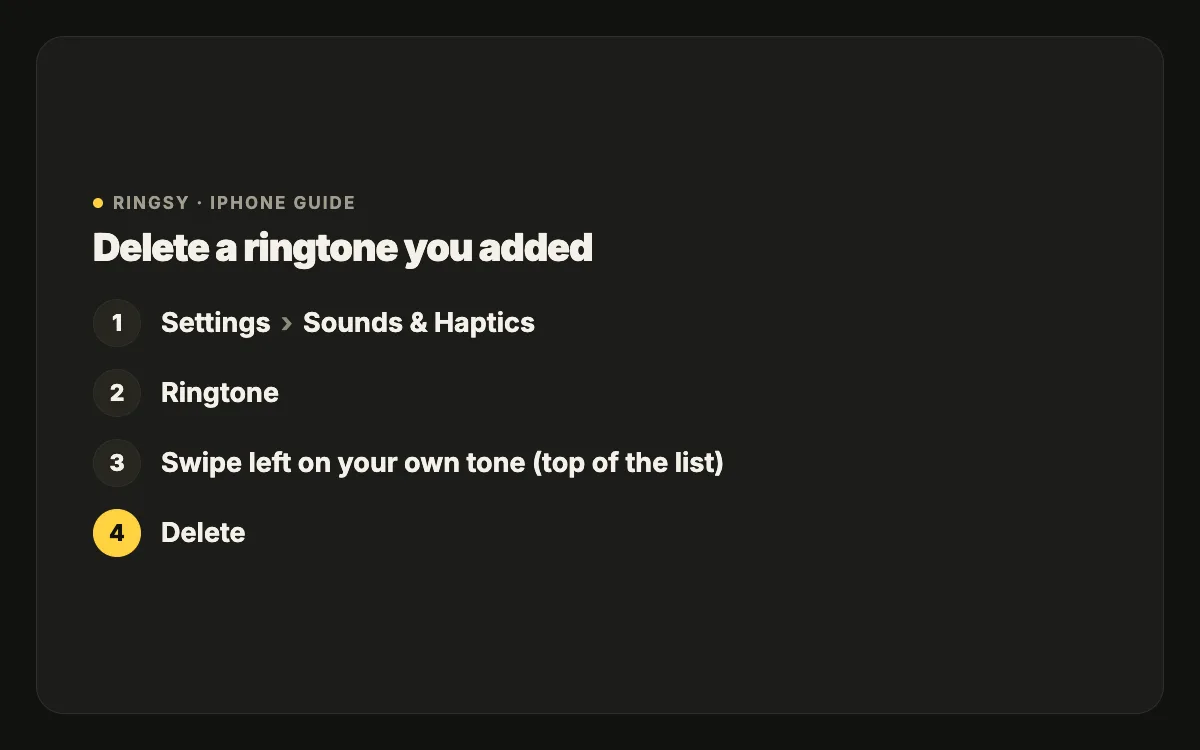
- 1Open Settings › Sounds & Haptics › Ringtone.
- 2Your own tones are at the top, above Apple’s Ringtones section.
- 3Swipe left on the one you want to remove.
- 4Tap Delete.
The tone disappears from the Ringtone list and from every other sound list, because iOS keeps one shared list of custom tones. You can also start from Text Tone or any other alert list — the swipe works in the same way there.
What happens to contacts that used it?
Contacts and alarms that pointed at the deleted tone fall back to the default. A contact with their own ringtone will ring with your default ringtone; an alarm will use a built-in sound. Nothing tells you this happened, so if you deleted a tone you had assigned to people, check those contacts (Contacts › the person › Edit › Ringtone) and pick a new sound.
If you are deleting the tone that is currently your default ringtone, iOS switches the default to a built-in one.
Why can’t I delete Apple’s ringtones?
The built-in ringtones and the Classic set are part of iOS, not files you added, so they have no delete option. They take very little space. If you never want to see them, the only option is to choose your own tone and ignore the rest.
Tones bought from the iTunes Store can be swiped away like your own. If you want one back later, Settings › Sounds & Haptics › Ringtone › Download All Purchased Tones restores the ones bought with your Apple Account.
What if the swipe doesn’t work?
- Make sure you are swiping a tone at the top of the list. Swiping a built-in tone does nothing.
- Close Settings completely (swipe it away in the app switcher) and open it again; the list sometimes lags after adding or removing tones.
- Restart the iPhone if a deleted tone still shows up.
Can I delete a text tone or alert sound the same way?
Yes. Custom tones are shared by all the sound lists, so a short sound you added as a text tone also appears under Ringtone, and deleting it from either list removes it everywhere. Settings rows that used it — Text Tone, New Mail, Calendar Alerts, Reminder Alerts — switch back to a built-in sound, so open Sounds & Haptics afterwards and check each row still says what you expect.
How do I stop one contact using a tone without deleting it?
If the tone is fine but shouldn’t play for one person any more, there is no need to delete it. Open the contact, tap Edit › Ringtone and choose Default (at the top of the list), or any other sound. The tone stays available for everyone else and for your alerts.
The same goes for text tones: Edit › Text Tone › Default puts that person back on your normal text tone.
Does deleting a ringtone free up space?
Barely. A 30-second ringtone is well under a megabyte, so deleting tones is about tidying the list, not storage. The source files — the song in Files, the GarageBand project, the recording in Voice Memos — are separate and stay where they are. Delete those in their own apps if you want them gone too, or keep them so you can rebuild the tone later.
Where Ringsy helps
When a tone was set with Ringsy, two copies exist: the one iOS added to its ringtone list (removed with the swipe above) and the edit in Ringsy’s My tones library. They are independent, so deleting one doesn’t remove the other. To remove it from Ringsy, tap ⋯ on the tone and choose Delete; to bring a deleted ringtone back, open it in My tones, adjust it if you like and tap “Save & set as ringtone” again. Re-exporting a tone you already exported doesn’t use up one of the free exports.